Google Search Tips That Feel Illegal (But Aren’t!)



Let’s just get this out of the way: Google search tips are kinda like secret spells. You know they exist, but no one really teaches you how to use them properly. You just type stuff in the search bar, cross your fingers, and hope the search results bless your screen with what you actually wanted. But if you knew what I know? Whew. You’d feel like a tech sorcerer casting spells on the world wide web.
I’ve been messing around with Google since I was a broke student trying to write last-minute research papers with three tabs open and a prayer. Now? I practically live on Google, and let me tell you, most people are doing it all wrong. The search engine has so many low-key tricks that it feels almost illegal when you start getting ultra-specific search results like a pro. But I promise, no laws broken here. Just pure, undiluted search magic.
The Secret Power of Google Search
Google isn’t just there to settle your random midnight questions about possums or what the heck kombucha really is. It’s basically your all-knowing bestie—if you know how to talk to it right. But most people? They’re out here tossing in messy search terms, crossing their fingers, and hoping for something useful to pop up. That’s like walking into a library, yelling “book!” and being shocked when nothing helpful shows up.
The truth is, there’s an art to using Google search well—and no, it’s not rocket science. Once you understand how the search engine actually works, everything changes. You stop drowning in a sea of random websites and start getting clean, sharp, relevant results. It’s all about using the right tools, knowing which keywords to drop, and adding a few powerful tricks into your search routine. These aren’t hacks—they’re skills you should’ve been taught in school, honestly.
If you’re done wasting time and ready to become a legit search ninja, this is your moment. I’m gonna show you how to refine your searches, work some underrated search tools, and use sneaky shortcuts that make you feel like a wizard. These Google search tips will seriously change the way you think about typing anything into that search bar. And fair warning—they’re so good, you might wanna gatekeep them. But don’t. Be a gem and pass them on, because everyone deserves a better search result.
READ ALSO: 8 Amazing Cleaning Hacks to Make Your Home Sparkle
Tip 1: Quotation Marks Are Magic Wands
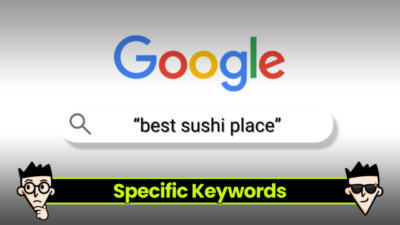
Let’s talk quotation marks. Simple? Yep. Slept on? Absolutely. Wrapping your search terms in quotes tells Google you want that exact phrase, no remix, no fluff. So instead of Google throwing random matches your way, it laser-focuses on the exact thing you typed. Example? Try “best sushi spots in LA” vs best sushi spots in LA (without quotes) and see the different results for yourself.
This is a godsend for students, bloggers, or anyone deep into research. If you’re writing a piece and need the exact definition or reference, this is how you find more relevant results in seconds. It’s also clutch if you remember just one juicy line from an article and want to track it down. Honestly, I don’t know who needs to hear this, but stop typing vague stuff into Google search and expecting genius-level answers.
So next time your brain goes blank during a research marathon or you’re chasing the answer to a weird question, slap on those quotation marks and thank me later. It’s like casting a truth spell on the search engine. And yes, it still works even if your Wi-Fi’s struggling.
Tip 2: Use the Minus Symbol to Banish Irrelevant Stuff
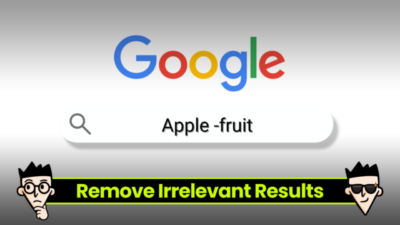
If I had a dollar for every time I searched Apple and got fruit instead of tech? I’d have enough to buy the newest MacBook. Enter the minus symbol, your best friend when it comes to cutting out the nonsense. When you use it, Google knows to exclude certain words from the search results. Like this: Apple -fruit. Boom, just sleek tech vibes.
This is perfect for when your search term has double meanings, which let’s be honest, happens all the time. You’re not trying to scroll through irrelevant junk when you’re deep in search mode. Remove the chaos and get straight to the good stuff. Also works when you’re avoiding spoilers, annoying sites, or just don’t want to see results from other websites.
It’s a simple trick, but don’t sleep on it. Your brain and your search history will thank you for keeping things clean. This is one of those Google search tips that makes you feel way too powerful. And honestly? We love that energy.
Tip 3: The “Site:” Hack for Goldmine Info
Want to dig deep into a specific website like the New York Times or a certain blog? Then honey, you need the site: operator in your life. It’s one of those Google search tips that takes you from basic browser to digital detective. Let’s say you want travel hacks from a blog you love, like insert-site.com. Type this into Google: “travel tips” site:insert-site.com. Mic drop.
You’ll only get pages from that site, no random results from the depths of the web. It’s perfect for when you trust a source and don’t want to mess with shady links or out-of-date articles. Students, you can use this on .edu domains for clean, academic gold. Businesses? Try it on .gov sites if you want official data that doesn’t feel like clickbait.
And get this: you can also do this to exclude a site if it keeps spamming your life. Just slap that minus symbol in front. I know, it’s wild how these search engine tricks stack up, right? The power is real, y’all.
Tip 4: Tame the Wild Web With Asterisks
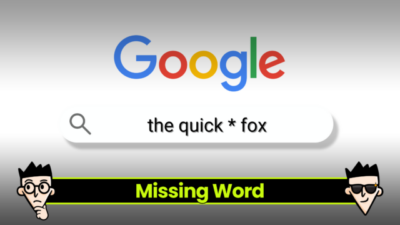
There’s nothing more annoying than half-remembering a quote or phrase and totally blanking on the rest. But guess what? Google doesn’t need you to be perfect. Toss in an asterisk (*) as your fill-in-the-blank tool. It tells the search engine to plug in any word it thinks completes the phrase. Like: “the * is mightier than the sword“. Magical, right?
This one’s perfect when your brain decides to check out mid-research or you’re half-listening to a podcast and want to fact-check. Or hey, maybe you’re just trying to impress your date with that almost-remembered quote. Use the asterisk and let Google work its autocomplete magic. This isn’t just a search trick, it’s a memory boost.
Bonus? You can get creative. If you’re brainstorming blog titles, catchy taglines, or even writing lyrics (hello, musicians), this is such a helpful tool. Google basically becomes your co-writer. Who knew a little star could unlock so much power in a search?
READ ALSO: 7 Benefits Of Using Google Ads
Tip 5: Use Two Periods For Ranges
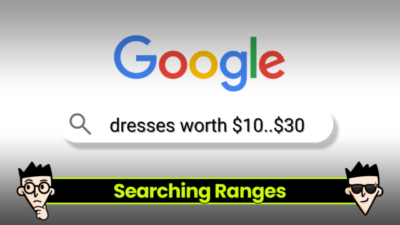
You’re budgeting for a new laptop and want one between $500 and $1000? Or you’re diving into a research piece on fashion trends from 1990 to 1999? Here’s a quickie Google search tip that people rarely use but always love when they find out: use two periods between numbers. Like this: laptops $500..$1000 or fashion 1990..1999. Game = changed.
This trick saves so much time it hurts. You don’t need to scroll through search results showing $50 netbooks or computers priced like a used car. You’re telling Google: Hey, give me only what I actually want. And guess what? It listens. Because Google is smarter than half the people on your group project (no offense).
Oh, and this works for scores, dates, weights, you name it. Want to search Olympic winners between 2000..2012? Done. Looking for tech articles posted between two specific years? Just plug in the range. With one tiny symbol, you’re turning your search into something super focused and scarily effective.
Tip 6: Define Anything, Instantly
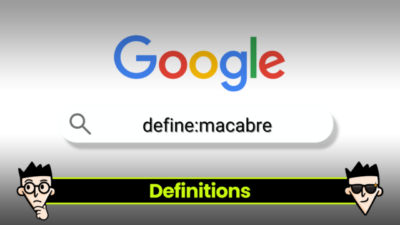
Ever found yourself lost in a sentence, realizing you don’t actually know what that word means? Same. Luckily, Google search has your back. Just type define: followed by your search term, and you’ll get a crisp, no-nonsense definition right there on the page. Example: define:serendipity. It’s like having a pocket dictionary that’s faster than your brain.
This Google search tips are lifesaver for students, writers, and anyone who needs to sound smarter on short notice. No ads, no distractions—just pure knowledge. It even adds pronunciation and synonyms so you don’t embarrass yourself in conversation. When your head hurts trying to decode academic articles, this trick will keep you sane.
It’s also super useful when you’re doing research or reading content in another language. Type define: plus your specific word, and let Google handle the rest. It’s simple, fast, and ridiculously effective. Honestly, this Google search tip should come preinstalled in your brain.
Tip 7: Use “Intitle:” to Target Page Titles Like a Sniper
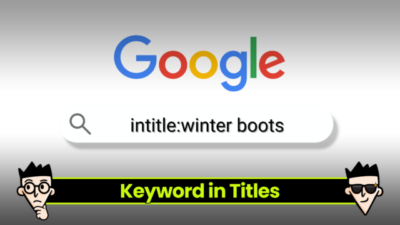
Let’s say you’re on the hunt for articles, blog posts, or guides where your keyword is right in the page title—not buried somewhere random in the content. That’s where intitle: swoops in like a hero. Type intitle: followed by your search term, and Google will serve you only pages that have that word in their title. For example, intitle:budget travel brings up articles that actually focus on budget travel, not ones that mention it as a side note. It’s one of those Google search tips that’s slept on but seriously powerful.
This trick is a favorite for content creators, marketers, and students doing deep research. If you want articles where the main topic is front and center, this gives you more direct matches. Pair it with other search operators like quotation marks or site: and boom—you’re pulling laser-focused search results like a pro. It saves time and makes sure you’re not stuck sifting through fluff or barely-related tangents. Basically, it helps you cut straight to the juicy stuff.
You can even use it with multiple keywords to find highly targeted titles. It’s also clutch when you’re looking for listicles, how-to guides, or news articles from a particular domain. Want to find New York Times stories about productivity? Try intitle:productivity site:nytimes.com. It’s precise, easy to use, and gives you way more control over how you explore the web. Give it a shot, and you’ll wonder how you ever lived without it.
Tip 8: Find Specific File Types Like PDFs
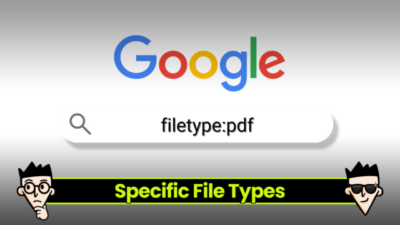
If you’ve ever wasted hours looking for a proper PDF, Google search has a fix for that. Use filetype:pdf after your search terms, and Google will only show you documents that match. Example: “freelance contract” filetype:pdf. Boom—clean, downloadable files with all the details you actually need.
This search tool is gold for students, writers, and researchers who need reliable sources. You can use it for articles, reports, or study guides without dealing with shady links. It works with other file types too—try filetype:docx or filetype:ppt if you’re after presentations.
The best part? It filters out all that filler junk that clogs up your search results. No pop-ups, no fake downloads—just what you asked for. Once you start using this, you’ll never go back to basic searching again.
READ ALSO: 8 Genius Fashion Hacks for Men
Tip 9: Use “Related:” to Discover Similar Sites
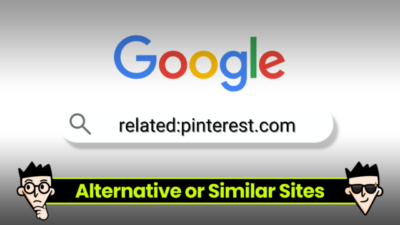
When you find a website you love and wish there were more like it, this one’s for you. Type related: followed by a URL. For example, related:insert-site.com, and Google will show websites with similar topics or vibes. It’s like discovering secret corners of the internet you didn’t know existed.
This trick is perfect if you’re hunting for research sources, shopping sites, or content creators that match your niche. It’s also a great way to find sites that offer more relevant results without you having to guess random keywords. Seriously, it’s like Google saying, “Oh, you liked that one? You’ll love these.”
Use it when you’re building links for a project, searching for competitors, or just exploring. It’s clean, quick, and weirdly satisfying. It’s one of those Google search tips that sounds simple but changes how you browse forever.
Tip 10: Use Google Images Like a Stalker (The Legal Kind)
Okay, confession time: Google Images is one of my favorite search tools. Reverse image searching feels like detective work but with better lighting. Just click the camera icon, upload an image, and Google will show you pages, sites, and links where that image appears. Great for verifying content, finding the original image, or just satisfying your curiosity.
It’s not just for memes or selfies, though. You can use it for research, to check fake profiles, or to locate high-quality images for projects. It’s a total lifesaver for bloggers, marketers, and anyone working with visuals.
And let’s be real—sometimes it’s just fun to see where your photo ended up on the web. The feature gives you different results based on locations, domains, and keywords, making it way more powerful than people think. It’s Google search at its most underrated.
Bonus Tip: Search Weather, Convert Currency, and More Right From Search
Google isn’t just a search engine—it’s practically your personal assistant. Want to check the weather? Type weather plus your *location. Need a quick conversion? Try 10 EUR to USD and see the US dollar rate instantly. Feeling stressed? Type breathing exercise, and Google literally helps you relax.
This is where the search engine gets creative. You can even search time zones in other locations, run quick math, or check definitions without opening extra sites. It’s the kind of power that makes you wonder how you ever lived without it.
It’s not just convenience—it’s control. You’re cutting through the noise, saving clicks, and getting answers immediately. This search magic makes life smoother, smarter, and just a bit cooler.
Key Takeaway
Google isn’t just a tool—it’s your ride-or-die in the digital world. These Google search tips transform every search from a wild guess into a precision strike. You’re no longer tossing random keywords into the void and hoping something sticks. You’re using shortcuts, commands, and smart tactics to control how you explore the web. That’s not basic browsing—that’s elite-level searching.
So yeah, Google is basically your digital butler, your research partner, and your smartest friend who always knows the answer. Whether you’re trying to find sites, dig up a lost quote, stalk an image (legally, of course), or track a package from across the planet, these tips got you covered. You’ll move faster, scroll less, and stop settling for meh search results. It’s like having VIP access to the internet without the fluff. You’re not just using Google—you’re mastering it.
Try these out, and watch your search results go from random chaos to total brilliance. You’ll be surprised how much more you can pull out of the search engine with just a few tweaks. Whether you’re a curious student, an online shopper, or just super nosey (again, no judgment), these tips are for you. Save this, share it, use it often—it’s the cheat sheet you didn’t know you needed. And seriously, if you’re not using these tricks… are you even Googling right?
UP NEXT: Phone Alarm Hacks That’ll Actually Wake Your Lazy Self Up
Frequently Asked Questions
What are the most effective Google search tips for beginners?
If you’re new to Google search, start with these: use quotation marks for exact phrases, the minus symbol (-) to remove certain words, and site: to focus on a specific domain. These tricks help refine your search results fast. You’ll waste less time scrolling through irrelevant stuff and get more relevant results in seconds. Perfect for students, researchers, and anyone trying to level up their search skills.
How can I use Google search to find PDFs or other file types?
It’s easy—just type your search term followed by filetype:pdf (or any file extension). For example, marketing strategy filetype:pdf pulls up downloadable documents only. This works with DOCX, PPT, XLS, and more. It’s one of the most powerful Google search tips if you’re looking for official reports, templates, or research material. Super useful for professionals and students alike.
Can Google search help me track packages without logging in?
Yes! Just copy and paste your tracking number directly into Google search. Google automatically detects the courier (like UPS or FedEx) and gives you an instant search result showing your package status. No need to open other sites or apps. This feature is fast, secure, and works for most major delivery services. It’s one of those underrated search tools that saves you serious time.
Source link