How the Gold Hype Expert Advisor Works
How the Gold Hype Expert Advisor Works
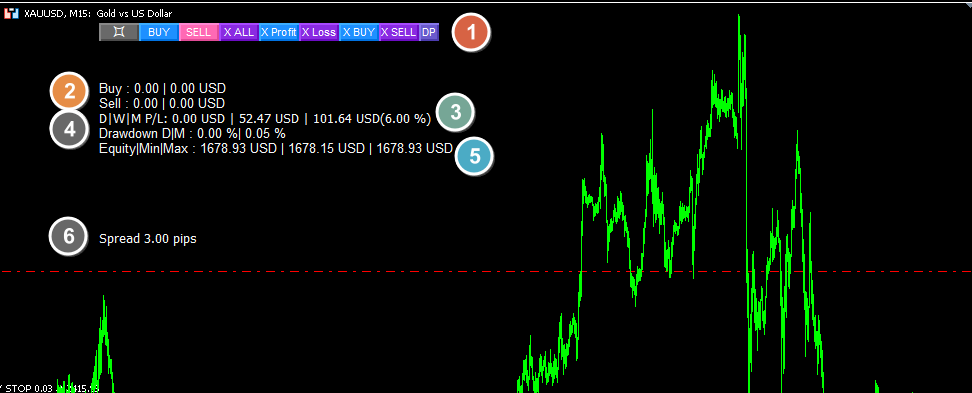
Trade Panel and info panel :
1. Trade Panel provides a function to open and close trades manually by pressing the desired button.
- Square Button: hide all buttons
- BUY Button: Open Buy
- SELL Button: Open Sell
- X All Button: Close All positions
- X Profit Button: Close All positions that are profitable
- X Loss Button: Close All losing positions
- X Buy Button: Close All all buy positions
- X Sell Button: Close All all sell positions
- DP Button: Delete all pending orders
2. Information about the total of lots and current profit/loss
3. DWM P/L provides information about daily, weekly and monthly profit/loss accumulation.
4. Drawdown D|M provides information about daily and monthly drawdowns. Monthly drawdowns take peak and lowest equity range data within a certain period of time. Regarding how to calculate drawdown, see the following link Click here and here
5. Equity|Min|Max provides information on current equity, minimum equity and maximum equity data in 1 month for the purpose of calculating maximum drawdown.
6. Spread, provides information on the current symbol spread
Expert input:
1. Manage Open Positions
- Enable Strategy 1-6: These settings allow you to enable or disable each of the six different trading strategies within the advisor.
- Timeframe Strategy 1-6: Specify the timeframe for each strategy (e.g., 1 minute, 5 minutes, 1 hour, etc.).
- Period in bars Strategy 1-6: Define how many bars the strategy should look back to analyze past data and make trading decisions.
2. Manage Lots and Money
- Autolot Type: Choose the type of autolot calculation.
- 0.01 per Equity Amount: Set the amount of equity that determines lot size. For example, if your balance is $1000 and you set the equity amount to $200, the autolot calculation would be 1000/200 = 5 x 0.01 = 0.05. Thus, for every $200 increase in equity, the lot size increases by 0.01.
- Fixed Lot size: Set a fixed initial lot size for trading.
- Maximal Lots: Define the maximum number of lots per trade.
3. Manage SL-TP Settings
- Stoploss & Takeprofit (in pips): Set the levels for stop loss and take profit in pips.
- Stop Loss (in pips): Specify the stop loss level in pips.
- Take Profit (in pips): Specify the take profit level in pips.
4. Manage Trailing
- Trailing: Enable or disable the trailing stop feature.
- Trailing Start (in pips): Set the number of pips at which the trailing stop starts.
- Trailing Size (in pips): Define the step size for the trailing stop in pips.
5. Manage BreakEven
- Break Even: Enable or disable the break-even feature.
- Break Even Start (in pips): Set the number of pips at which the break-even point starts.
- Break Even Step (in pips): Define the step size for adjusting the break-even point.
6. Manage Monthly Target
- Enable Monthly Target: Enable the monthly target feature for prop firm trading.
- Monthly Target, %: Set the monthly target as a percentage.
7. Manage Drawdown
- Enable Manage Drawdown: Enable the drawdown management feature.
- Max Drawdown Daily (0= No Max DD), %: Set the maximum daily drawdown as a percentage.
- Max Drawdown Monthly (0= No Max DD), %: Set the maximum monthly drawdown as a percentage.
8. Time Management
- Use time control: Enable restrictions on trading hours and days, applicable only for opening new cycles. The timing uses the broker’s server time.
- Trade Start Time: Specify the time to start trading.
- Trade End Time: Specify the time to stop trading.
- Trade in Monday-Friday: Enable or disable trading on specific days of the week.
9. Continue New Cycle Management
- Start a new cycle at the specified hour using the broker’s server time.
10. Manage News
- Stop Trade by News: Enable or disable the news filter to avoid trading during significant news events.
- Show News Only This Chart Currency: Display news related to the current chart/symbol only.
- High/Medium/Low Importance News: Classify news based on its importance and set colors for each category.
- Stop trade X seconds before the news: Stop trading a specified number of seconds before the news release.
- Stop trade X seconds after the news: Stop trading a specified number of seconds after the news release.
- Show timer before and after news: Display a timer for the duration before and after the news event.
- Period news updates in seconds: Set the interval for news updates in seconds.
11. Manage Others
- Max Spread (in Pips): Set the maximum allowable spread in pips.
- Max Slippage (in Pips): Define the maximum allowable slippage in pips.
- Coefficient (if Freeze=0 Or StopsLevels=0): Enter a value to anticipate volatile market conditions where the broker may increase the freeze level and stop level.
- Magic Number: The EA uses this number to identify open positions, ensuring it manages only its own trades.
Please check your prop firm rules before buying this EA.
- There are some prop firms that do not allow stacked/multiple positions. Solution: You may only be able to activate 1-2 strategies or use higher timeframes and periods to anticipate Gold Hype opening multiple positions at the same time or in close proximity.
- There are some prop firms that do not allow trading over news, solution: you can activate news filter.
- There are some prop firms that do not allow holding trades over weekends, solution: you can activate time management and only trade during the Asian session on Fridays to avoid the possibility of holding positions over weekends.
- There are some prop firms that do not allow profits of more than 30% in one period, solution: you can activate monthly target management.
Please check with your prop firm rules and prop firm support before using this EA on different phases of prop firm accounts.