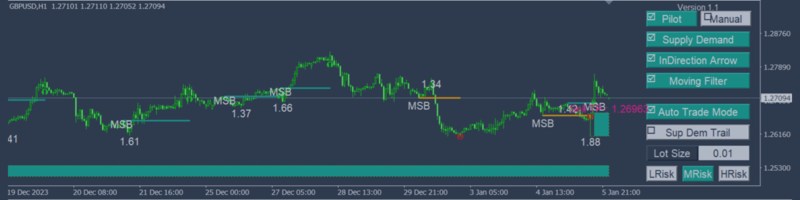
User Guide And Introduction To Run MSB robot On Real Account _ English Edition
Introduction
Welcome to the official user guide for MSB Robot – Version 1.1, a fully automated trading system built on the powerful logic of the Market Structure Breakout (MSB) indicator. Whether you are a beginner or a professional trader, MSB Robot is designed to simplify and automate your trading while maintaining precision, control, and performance.
This guide will walk you through:
-
Easy setup and installation on MetaTrader 4
-
How to run the EA on a real trading account (specifically on GBPUSD / H1)
-
Explanation of the on-chart control panel
-
A quick Strategy Tester section to help you test before buying
-
Notes on future updates and improvements
Quick Setup Guide: How to Install and Run MSB Robot
Step 1: Install From MQL5 Market
-
Go to the MSB Robot product page
-
Download or purchase the product directly to your MetaTrader 4 platform
-
It will appear under Navigator > Expert Advisors > Market
Step 2: Attach to Chart
-
Open MetaTrader 4
-
Select GBPUSD from Market Watch, then open a new chart
-
Set the chart’s Timeframe to H1 (1 Hour)
-
Drag and drop MSB Robot onto the chart
-
In the EA settings popup:
-
Click OK
-
Make sure the AutoTrading button at the top of MT4 is enabled (green)
✅ Recommended Starting Capital: $100
✅ Recommended Symbol: GBPUSD
✅ Recommended Timeframe: H1
✅ Best Mode: Auto Pilot Mode
How to Use Strategy Tester (Backtest Before Purchase)
Before buying, you can test MSB Robot for free using the built-in Strategy Tester in MetaTrader 4.
Steps to Run a Backtest:
-
Go to View > Strategy Tester (or press Ctrl+R )
-
Select MSB Robot from the Expert Advisor dropdown
-
Choose:
-
Set Date Range and initial deposit (e.g., $100)
-
Enable Visual Mode if you want to watch trades in action
-
Click Start
📌 This is the best way to understand how the robot trades, handles risk, and performs in various market conditions—all before making a purchase.
Understanding the On-Chart Control Panel
Once MSB Robot is running, you will see an interactive control panel in the top-right corner of your chart. Here’s what each section means:
1. Mode Selection
🟢 Green = Active | ⚪ Light Gray = Inactive
2. Trade Filters
-
Supply Demand: Enables supply-demand filter
-
InDirectionArrow: Trade only in MSB arrow direction
-
Moving Filter: Adds moving average filter
-
Auto Trade Mode: Turn trading on/off
-
Sup Dem Trail: Enables dynamic trailing with supply-demand zones
3. Risk Management
4. Exit Management
5. Strategy Options
6. Protection Tools
Color and Alert Guide
-
🟢 Green: Feature is enabled
-
⚪ Light Gray: Feature is disabled
-
🔴 Blinking Indicators: Alert you to critical settings like Auto Trade or improper lot size
Important Notes for Users
-
🆕 This user guide is based on MSB Robot Version 1.1
-
🔄 In upcoming versions, more trading pairs will be added for broader market coverage
-
💡 Always start in Pilot Mode for the most optimized, hands-off experience
Conclusion
MSB Robot is not just an Expert Advisor—it’s a complete trading solution. It adapts to your strategy, protects your capital, and helps you benefit from one of the most reliable breakout logics in forex trading.
Before going live, be sure to backtest it using MetaTrader 4’s Strategy Tester, explore its settings, and start trading smarter with confidence.
👉 Download MSB Robot today on MQL5 Market and let smart automation do the work for you.