AI Economic Release Strike EA User Manual
AI Economic Release Strike EA User Guide
1. Overview
The AI Economic Release Strike EA (hereafter ERS EA) is a news-scalping expert advisor designed to capture the sharp, short-lived volatility that occurs just before high-impact economic releases.
Leveraging proprietary AI analysis of the global GDELT news database, the EA follows a “one-shot” logic: open a position 3 minutes before the release → force-close it InpForceCloseSec seconds after the release (default = 3 sec).
- Platform supported: MetaTrader 5 (MT5)
- Recommended time frames: M1–M15 (chart TF does not affect trade frequency)
- Recommended symbols: EURUSD, USDJPY and other major low-spread pairs
Note: For high-spread symbols (e.g. XAUUSD) raise InpMaxSpreadPips accordingly. - Recommended brokers: ECN / RAW accounts (tight spread & fast execution)
- Target volatility: engineered to capture one-shot moves of roughly ±50 pips immediately after the release
2. Installation Steps
Automatic Installation
If you purchase the EA from the MQL5 Market, it will be installed automatically via the MT5 “Navigator” > “Market” tab.
Manual Installation
- Copy AI Economic Release Strike EA.ex5 into the MQL5\Experts\ folder
- Restart MT5
Attach to a Chart
- Open any symbol / timeframe chart (e.g., EURUSD M5)
└ The EA’s internal logic will automatically detect the currency pair with the highest volatility for the upcoming release and place orders on that pair. - In the Navigator, drag & drop AI Economic Release Strike EA from “Expert Advisors” onto the chart
- Tick “Allow Algo Trading” → OK
- Even if your broker appends a suffix such as .m or # , the EA resolves it automatically, so no extra settings are required.
WebRequest Settings (Required)
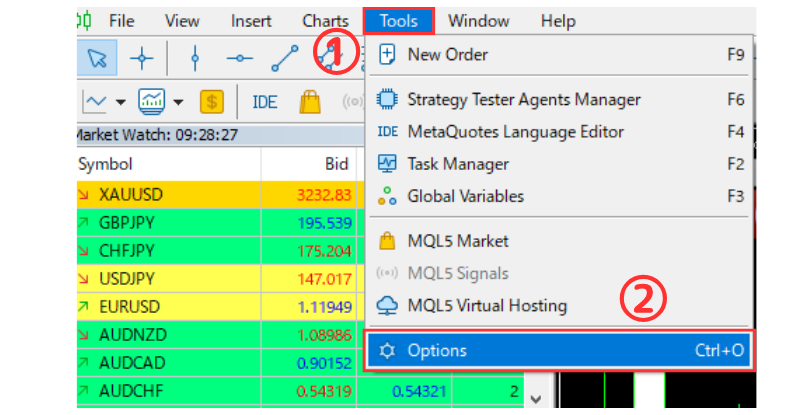
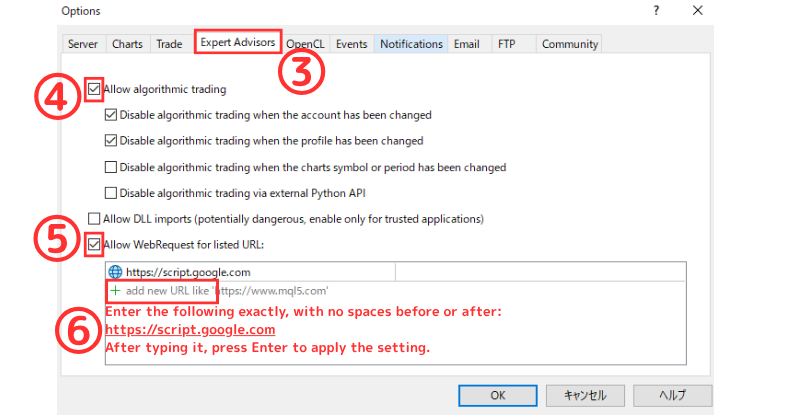
In MT5, go to [Tools] → [Options] → [Expert Advisors] and add
https://script.google.com
to “Allow WebRequest for listed URL”.
The EA performs license verification via Google Apps Script.
3. Input Parameter Details
| Group | Parameter | Default | Description |
|---|---|---|---|
| 🔑 License Verification | InpLicenseKey | (none) | Purchase key—must be filled in. |
| InpLicenseInterval | 3600 | Re-check interval (seconds). | |
| 📄 Calendar Check | InpCheckInterval | 30 | CSV reload interval (seconds). Do not set below 30 sec. |
| ⏱️ Entry Timing | InpLeadSec | 180 | Seconds before release to open a trade. |
| 💼 Exit Timing | InpForceCloseSec | 3 | Seconds after release to force-close. |
| ⚙️ Filters / Risk | InpMinStars | 3 | Minimum ★ rating required. |
| InpMinVolPips | 15 | Minimum expected move (pips). | |
| InpMaxSpreadPips | 30 | Maximum allowed spread (pips). | |
| 💰 Lot Settings | InpLotSize | 0.05 | Base lot size. |
| InpVariableLot | true | Enable automatic ★-based multipliers. | |
| 🛑 Initial SL | InpUseInitSL | true | Place initial SL on entry. |
| InpInitSLPips | 60 | Initial SL width (pips). | |
| InpTightenAtNews | true | Tighten SL to breakeven just before release. | |
| InpTightenSec | 20 | Seconds before release to tighten SL. | |
| 🎯 Trailing TP | InpEnableTrail | true | Enable trailing take-profit. |
| InpTrailPips | 300 | Trigger distance for instant TP (pips). | |
| ⚙️ Common | InpEnableEA | true | Master on/off switch. |
| InpMagicNumber | 4102025 | Upper 32-bit fixed magic number. | |
| InpUseSymbolMagic | true | Separate magic per symbol. | |
| InpLogLevel | 0 | 0 = DEBUG, 1 = INFO, 2 = WARN, 3 = ERROR. |
4. Notes & FAQ
- Q: The EA doesn’t open trades.
Check: 1) License key not entered 2) MT5 “Algo Trading” button is OFF 3) InpMinStars or InpMaxSpreadPips too strict. - Q: Trades are skipped due to spread.
Spreads often widen right before news. ECN accounts are recommended. If you must trade, raise InpMaxSpreadPips. - Q: Stop-loss is too wide/narrow.
Balance InpInitSLPips and InpTrailPips. Use wider SL on high-volatility pairs.
5. How to Read the “Expert” Tab Logs
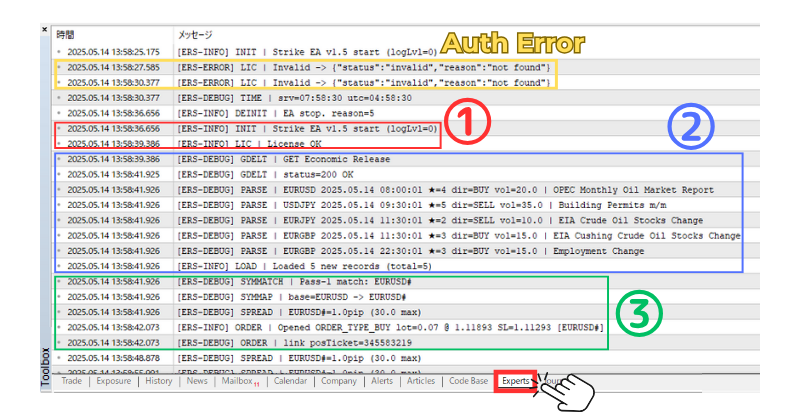
The MT5 “Expert” tab can be divided into three phases—① initialization & license, ② data retrieval, ③ entry execution—making troubleshooting straightforward.
① Initialization & License Verification
- INIT | Strike EA v1.5 start – EA has been loaded onto the chart.
- LIC | License OK – GAS replied with {“status”:”valid”} ; license accepted.
- Auth Error / LIC | Invalid … – Key not found, expired, inactive, or WebRequest not authorised.
② Economic-Data Retrieval
- GDELT | GET Economic Release – Start downloading the CSV.
- status = 200 OK – HTTP success; CSV will now be parsed.
- PARSE | EURUSD … – Parsed indicator line.
- LOAD | Loaded n new records – Number of new rows added.
③ Entry Check → Order Execution
- SYMMATCH – Maps input symbol to actual tradable symbol.
- SPREAD – Current spread vs. allowed max.
- ORDER | Opened … – Market order placed successfully.
Send fail err=… shows the broker error code if the order was rejected.
Typical Log Messages & Quick Fixes
- Auth Error – Key not registered / expired / inactive / WebRequest not authorised.
- HTTP fail – Network issue / wrong URL / SSL problem.
- LOAD 0 new records – No upcoming indicators or CSV format mismatch.
- SKIP | spread – Spread exceeded InpMaxSpreadPips.
- SKIP | confidence / volPips – ★ rating or expected pips below threshold.
6. Support
If you need assistance, send us a message via the MQL5 “Messages” system or leave a comment on the product page.
Attaching your Experts tab logs and a screenshot will help us resolve issues more quickly.
Source link