EXTERNAL EA CONFIGARATION (Manual)
External EA Configuration
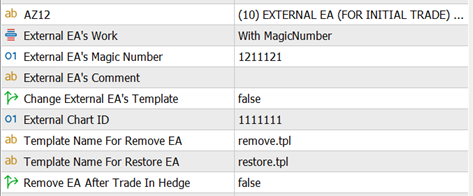
This section explains how AZ Trade Recovery EA works when your initial trade is opened by another EA. In this mode, AZ Trade Recovery EA does not generate entry signals on its own—instead, it takes over risk control and recovery once an external EA opens a trade.
This setup is useful when you already trust another EA’s entry logic but want advanced zone recovery, hedging, and loss management handled separately.
When to Use External EA Mode
Use this configuration only if:
-
You want another EA to open the initial trade
-
AZ Trade Recovery EA should manage recovery, hedging, and exits
-
You want to temporarily pause or disable the external EA during recovery
To activate this behavior:
Core Rules (Very Important)
-
AZ Trade Recovery EA can manage only one initial trade per chart
-
The external EA must not open multiple trades on the same symbol
-
Once recovery starts:
-
If both EAs run at the same time without control, trade conflicts may occur
To prevent interference, AZ Trade Recovery EA can temporarily disable the external EA using templates.
How AZ Trade Recovery EA Controls an External EA
Because MetaTrader does not allow EAs to remove other EAs directly (and DLLs are not permitted on the marketplace), AZ Trade Recovery EA uses a template-based control method.
Concept Overview
This ensures:
Required Inputs
External Chart ID
The unique chart ID where the external EA is running.
-
If managing multiple external EAs, enter multiple chart IDs
-
Separate values with commas
-
Example:
130923092937824602,130923092937824603
Rules
Remove EA’s Template Name
Template applied to disable or remove the external EA.
You can create this template in two ways:
-
Blank chart template (removes EA completely)
-
Template with the external EA attached but “Allow Live Trading” unchecked
Template naming rules:
Example:
Restore EA’s Template Name
Template used to restore the external EA after recovery completes.
This template must:
Example:
Working with Multiple External EAs
AZ Trade Recovery EA matches templates to chart IDs by order.
Example 1: Different EAs or different settings
        External Chart ID:  ID1,ID2,ID3
Remove Template:    remove1,remove2,remove3
Restore Template:   restore1,restore2,restore3
Each chart uses its corresponding template.
Example 2: Same EA, same settings
External Chart ID: ID1,ID2,ID3 Remove Template: remove_all Restore Template: restore_all
All charts use the same template.
Example 3: Same EA, different restore logic
        External Chart ID:  ID1,ID2,ID3
Remove Template:    remove_all
Restore Template:   restore1,restore2,restore3
How AZ Trade Recovery EA Recognizes External Trades
Trade recognition is based on:
-
Magic Number
-
Trade Comment
Once a valid initial trade is detected:
-
AZ Trade Recovery EA assumes full control
-
External EA logic is paused via template
-
Recovery logic runs independently
Why Disabling the External EA Is Important
If the external EA continues running:
-
It may close trades unexpectedly
-
It may open new trades during recovery
-
It may modify SL/TP levels
Any of these actions can break the recovery logic.
Template-based removal ensures:
-
One EA controls the trade cycle
-
No conflicting trade actions
-
Clean and predictable recovery behavior
Step-by-Step Setup Guide
Step 1: Find the External EA Chart ID
Step 2: Create Templates
Remove EA Template
Restore EA Template
-
Attach the external EA normally
-
Enable “Allow Live Trading”
-
Save template (e.g. restore_ea )
Step 3: Configure AZ Trade Recovery EA
Step 4: Run and Monitor
Summary
-
External EA mode allows separation of entry and recovery logic
-
Template control prevents EA conflicts
-
Supports single or multiple external EAs
-
Ensures safe, automated recovery without manual intervention
This setup is recommended for advanced users who combine multiple systems into a single controlled