How to Install the RS Trade Copier Demo Version – Step by Step
🚀 RS Trade Copier Demo: Quick Installation Guide
📘 In this guide, you’ll learn how to install the RS Trade Copier demo version into your MetaTrader 5 terminals — step by step.
⚡ I’ll show you a simple way — how to download the demo file and place it into your terminal. The method requires accessing the terminal’s data folder, but I’ll guide you through each step — no technical skills needed.
🖥️ You’ll need at least two installed terminals — MT5 or MT4. For example, both can be MT5. RS Trade Copier is cross‑platform, so you can also copy trades between different platform versions (MT4 ↔ MT5).
🛠️ Product Pages
🔗 RS Trade Copier for MT4: https://www.mql5.com/en/market/product/7655
🔗 RS Trade Copier for MT5: https://www.mql5.com/en/market/product/7666
🆓 Free Demo (24 hours, demo accounts only)
📥 Download for MT4: RS Trade Copier v8.12 Demo.ex4
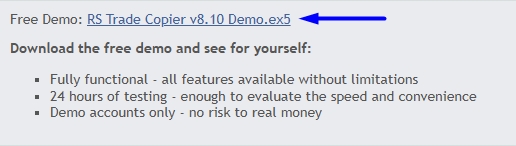
📥 Download for MT5: RS Trade Copier v8.10 Demo.ex5
🔗 Click the download link to get the demo file.
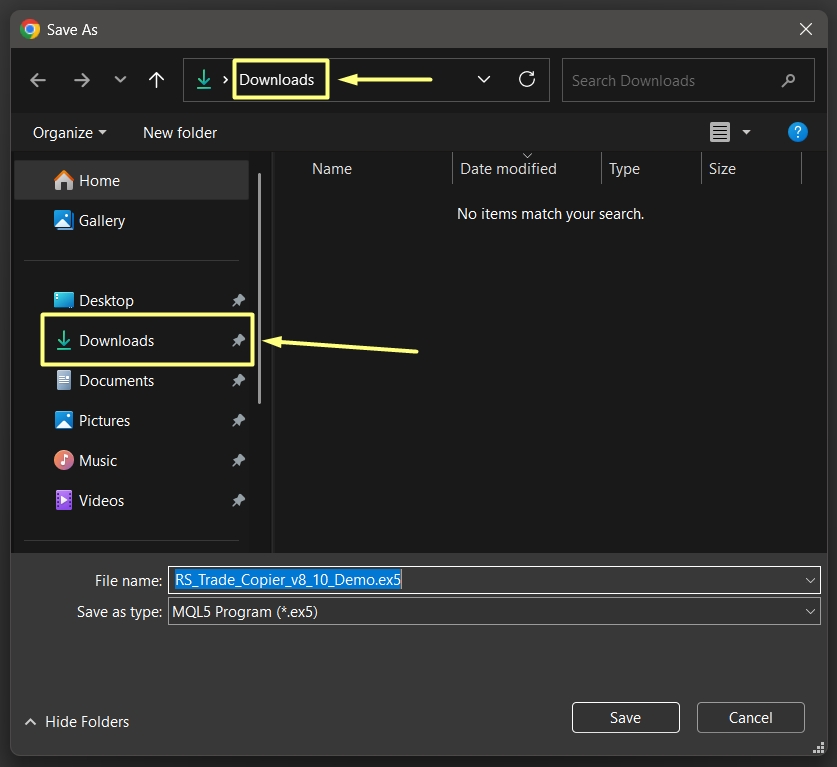
🌐 Your browser may ask you where to save the file — or it may download it automatically to your default folder. Either way, the file will be easy to find once the download is complete.
📁 If a window appears asking you to choose where to save the file, save it to your “Downloads” folder — this will make it easier to find the downloaded file afterward.
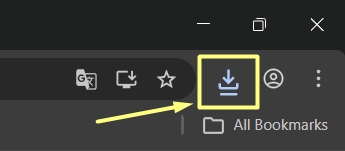
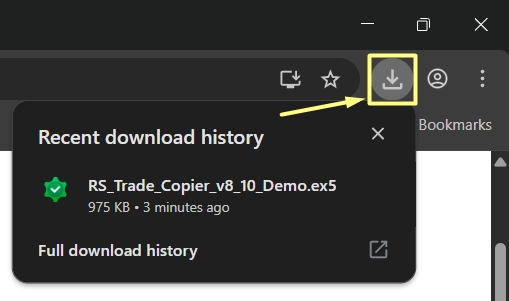
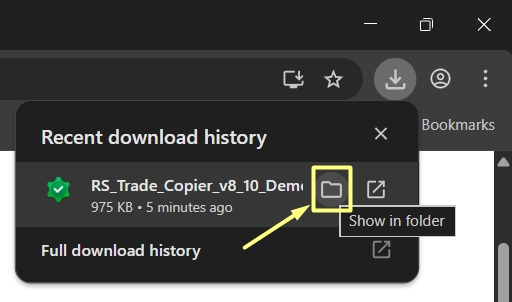
🌐 If you’re using Chrome browser, you can find the downloaded file here.
🖱️ Click here to see the downloaded file.
📂 Next, open the folder containing the downloaded file.
🖱️ Once you find the file in your downloads list, click “Show in folder” — the folder will open immediately with the file highlighted and ready to copy.
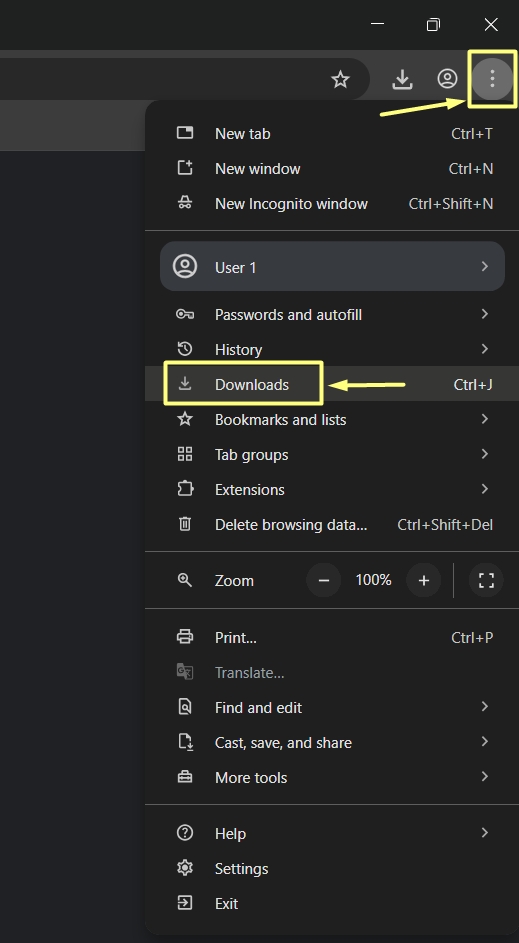
🔍 You can also locate the file using the Chrome browser menu.
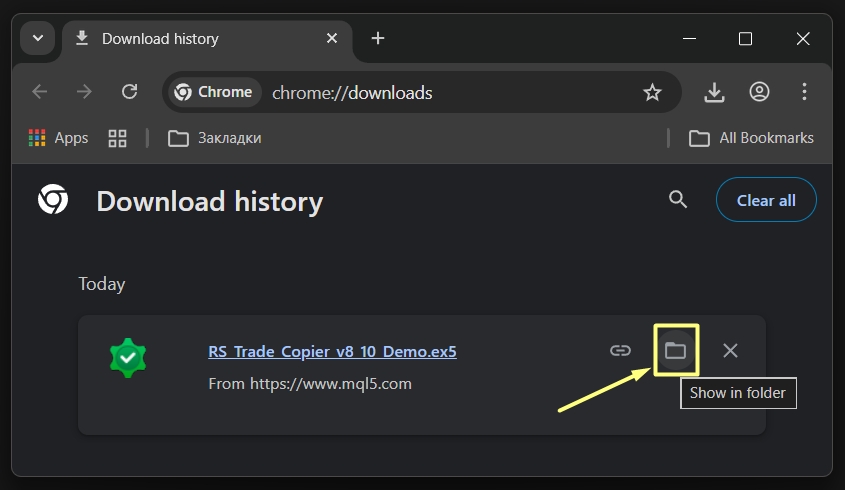
📂 Now, open the folder where the downloaded file is located.
🖱️ Once you find the file in your downloads list, click “Show in folder” — the folder will open immediately with the file highlighted and ready to copy.
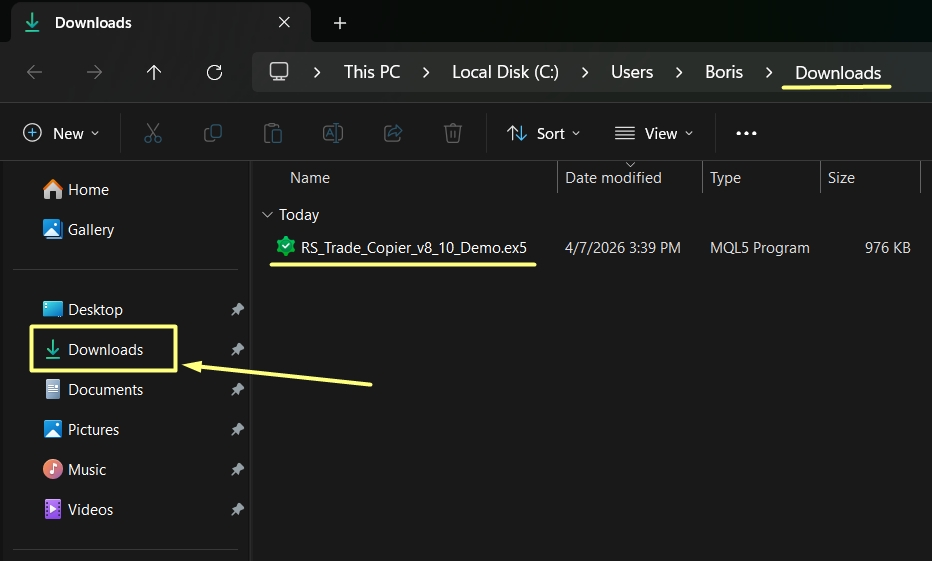
📁 If you saved the file to the “Downloads” folder during the download process, you will find the file right there — in your Downloads folder.
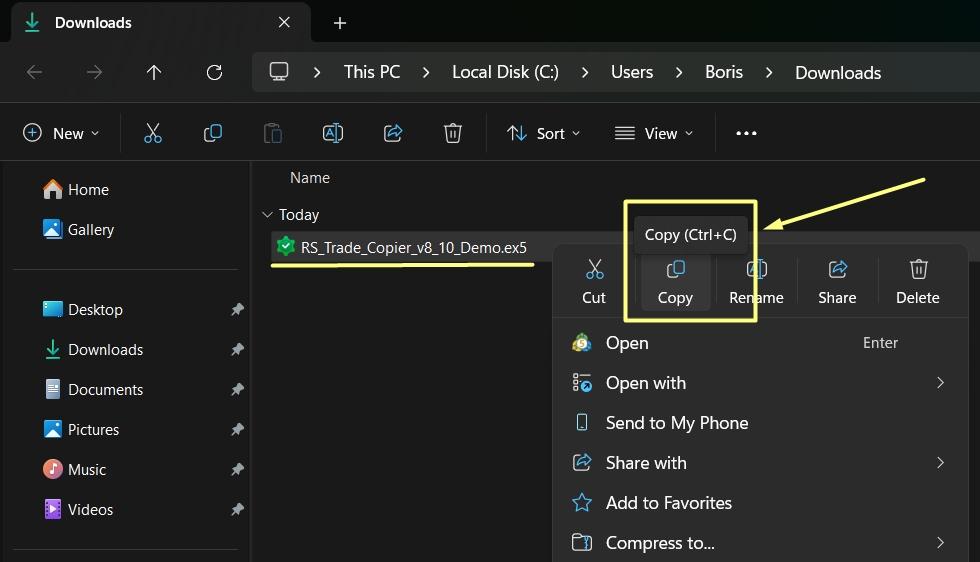
✅ Now select the file (click on it once to highlight).
🖱️ Open the context menu — right‑click on the file — then click Copy (or press Ctrl+C on your keyboard).
📋 The file is now copied to your clipboard, ready to be pasted into your terminal folder.
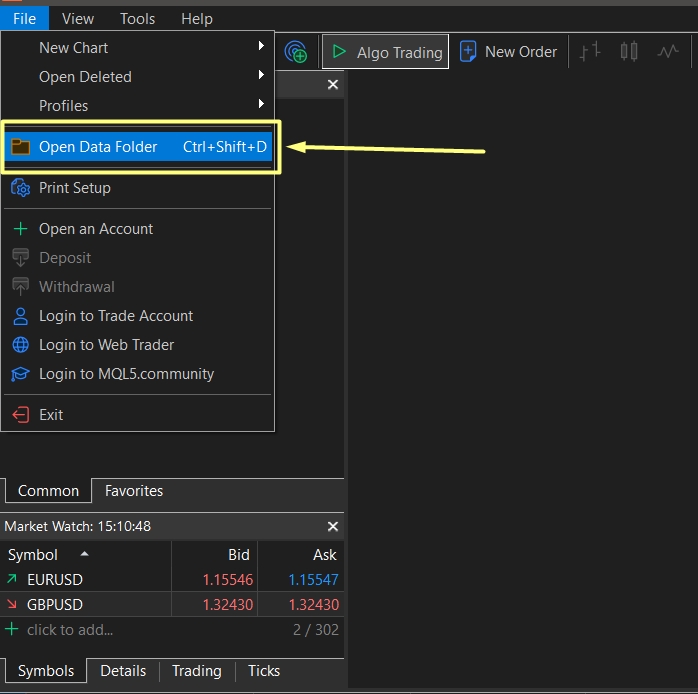
🖥️ Now, go to your MetaTrader 5 terminal.
📂 Open the File menu and click Open Data Folder.
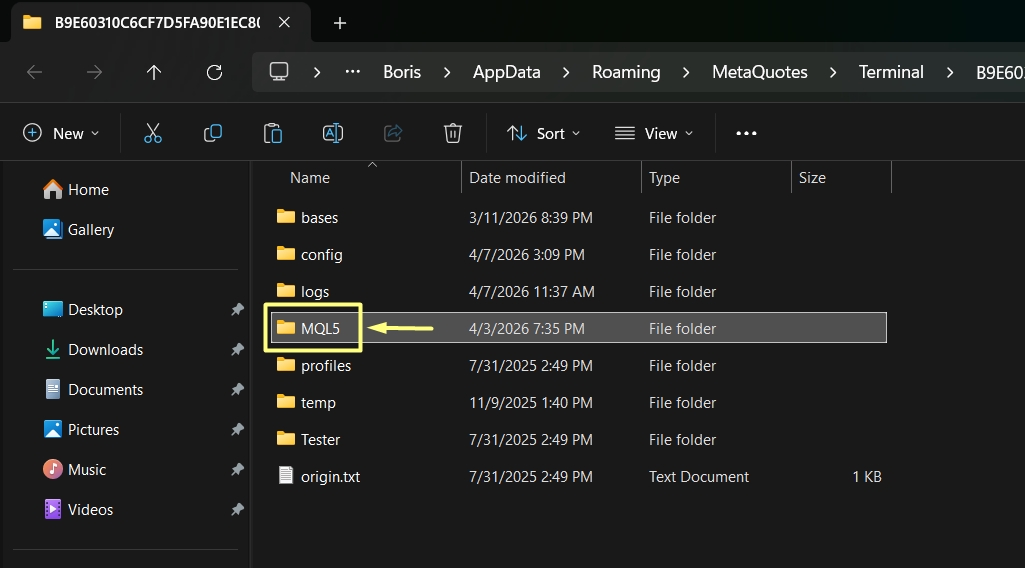
📌 This will open the terminal’s root directory — the main folder where all your terminal’s files are stored.
📁 Inside the Data Folder, locate and open the MQL5 folder.
📌 This folder contains all the main components of your MetaTrader 5 terminal — indicators, experts (EAs), and scripts.
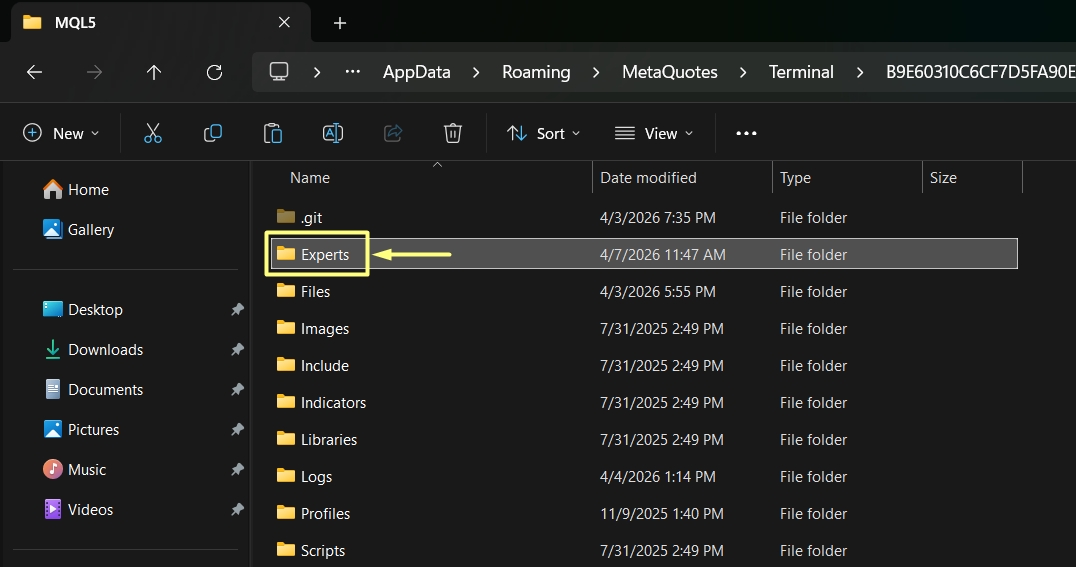
📂 Next, open the Experts folder.
🤖 This is where all Expert Advisors are stored in your MetaTrader 5 terminal.
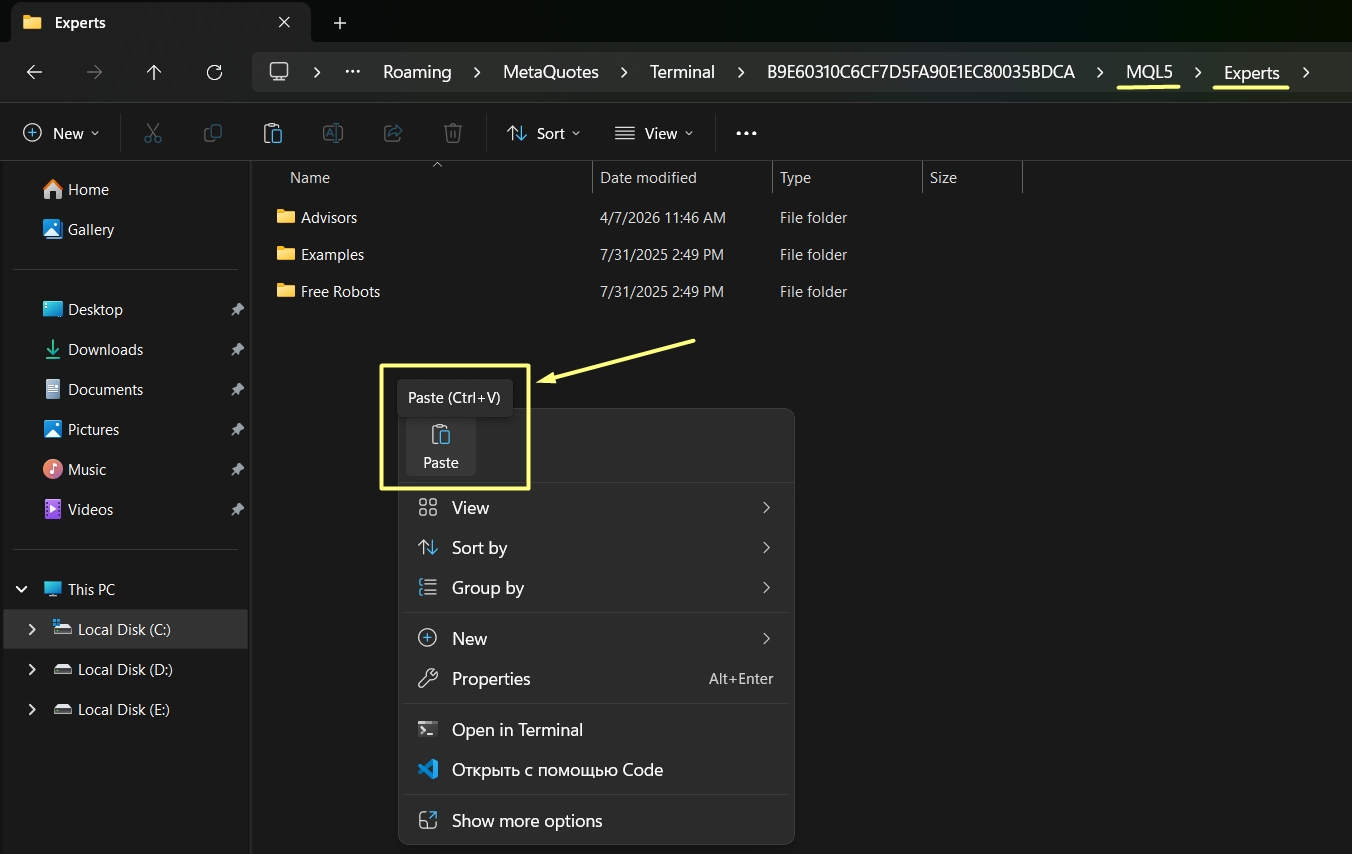
📂 Inside the Experts folder, right‑click on an empty area (not on any existing file or folder).
📋 From the context menu, select Paste (or press Ctrl+V on your keyboard).
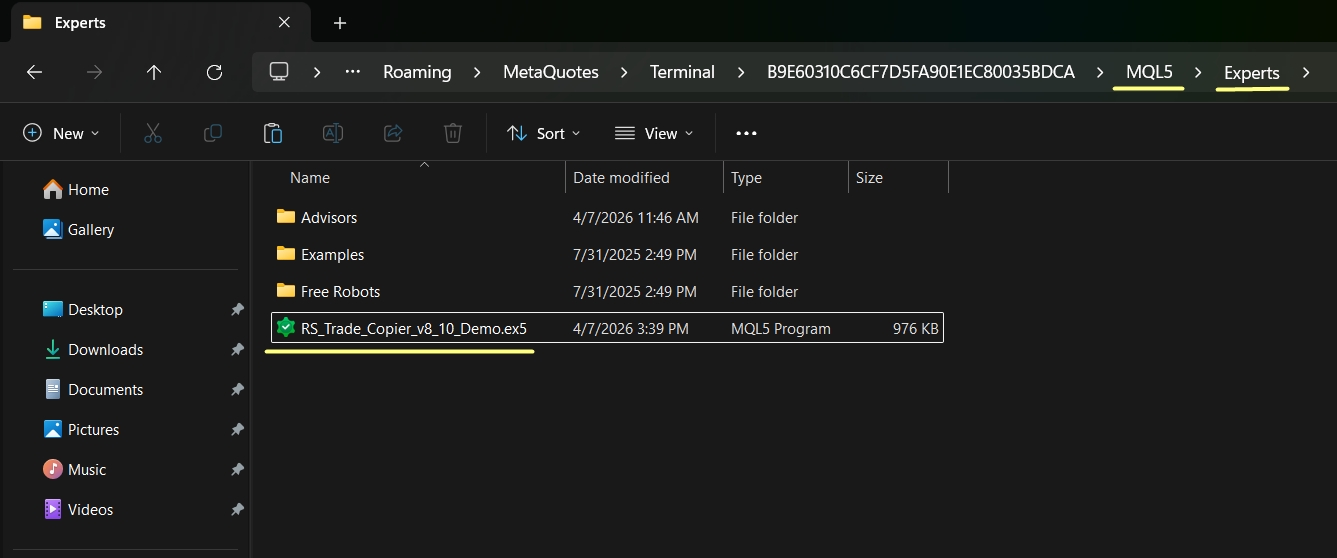
✅ The demo file will now appear in the Experts folder — ready to use in your MetaTrader 5 terminal.
✅ If you’ve followed all the steps correctly, the demo file will now appear inside the Experts folder.
📌 You should see the file listed there — that’s how you know the installation was successful.
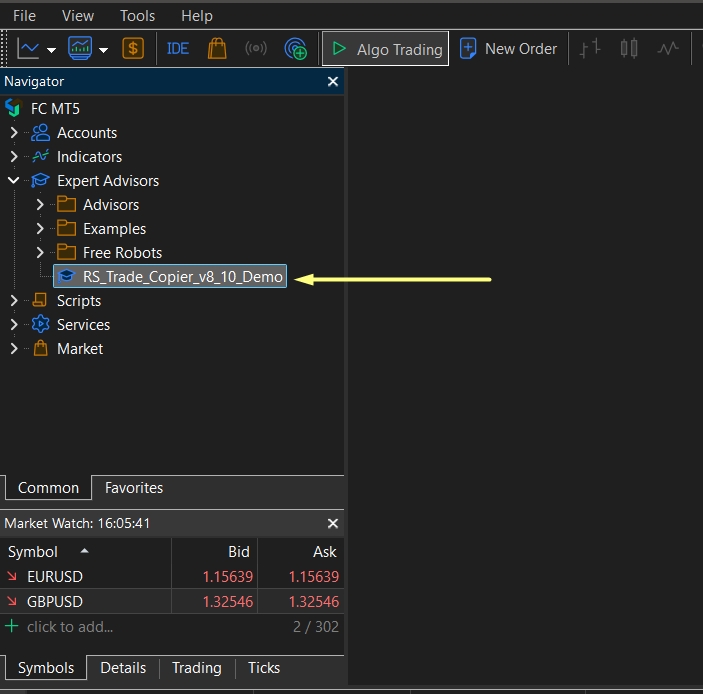
🔄 Now restart your MetaTrader 5 terminal — or simply right‑click inside the Navigator window and select Refresh.
✅ After that, you will see RS Trade Copier ready to use under the Expert Advisors section in the Navigator panel.
🎉 That’s it! The demo version is now installed and ready for testing.
🖱️ Drag and drop RS Trade Copier from the Navigator panel onto any open chart.
🌐 In the Expert Advisor properties window, go to the Inputs tab and select your language.
✅ Click OK — the step‑by‑step setup wizard will then guide you through the rest of the configuration.
📌 The wizard makes the setup quick and easy, even if you’re using the trade copier for the first time.
Source link