How To Control MT5 from Your Phone: Smart Remote Trade Assistant – Bridge App & Telegram Bot Installation Tutorial
How To Control MT5 from Telegram & Your Phone: Smart Remote Trade Assistant MT5
Welcome to the official setup guide for the Smart Remote Trade Assistant MT5. In this tutorial, we will walk you through the process of connecting your MetaTrader 5 terminal to your smartphone using Telegram. By setting up our secure, local bridge, you will be able to execute, manage, and monitor your trades remotely with professional-grade encryption.
Let’s get your remote control center up and running in under 5 minutes :
Step 1: How to Create Your Telegram Bot Using BotFather
Before the bridge can connect to your phone, you need your own Telegram Bot. This bot acts as your private assistant, securely relaying your commands to MT5.
-
Open the Telegram app on your phone or PC.
-
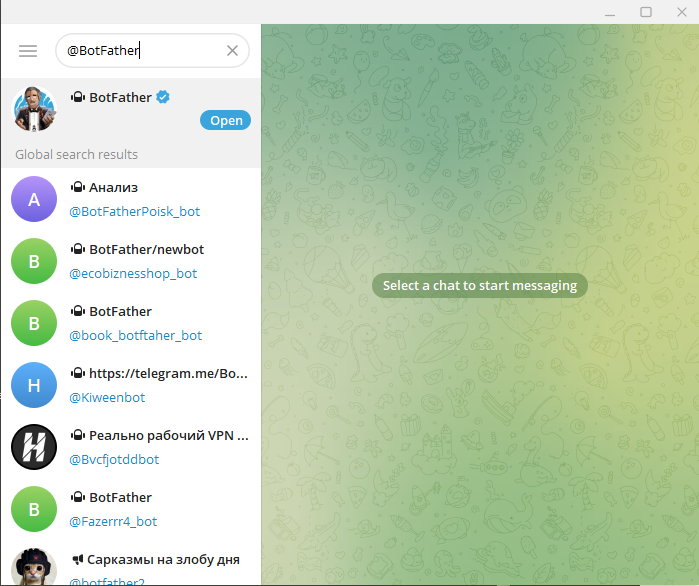
In the search bar, type @BotFather and open the chat with the official verified account (look for the blue checkmark).
-
Tap or type /start to activate BotFather.
-
Type the command /newbot to create a new bot.
-
BotFather will ask you to choose a Name for your bot (e.g., My MT5 Trading Bot).
-
Next, choose a Bot Username. It must be unique and end with the word “bot” (e.g., SmartTrader123_bot).
Step 2: Where to Find and Copy Your BotFather Token
Once your bot is created, BotFather will send you a congratulatory message containing your unique HTTP API Token.
-
This token looks like a long string of numbers and letters (e.g., 1234567890:ABCdefGhIJKlmNoPQRstuVWxyz… ).
-
Action: Copy this entire token. Treat this like a password; do not share it with anyone. You will need to paste it into the Bridge application shortly.
Step 3: Configuring the Smart Remote Trade Assistant MT5 Bridge 1.12 Windows .exe file
Now that you have your Telegram credentials, it is time to link them to the secure local bridge.
-
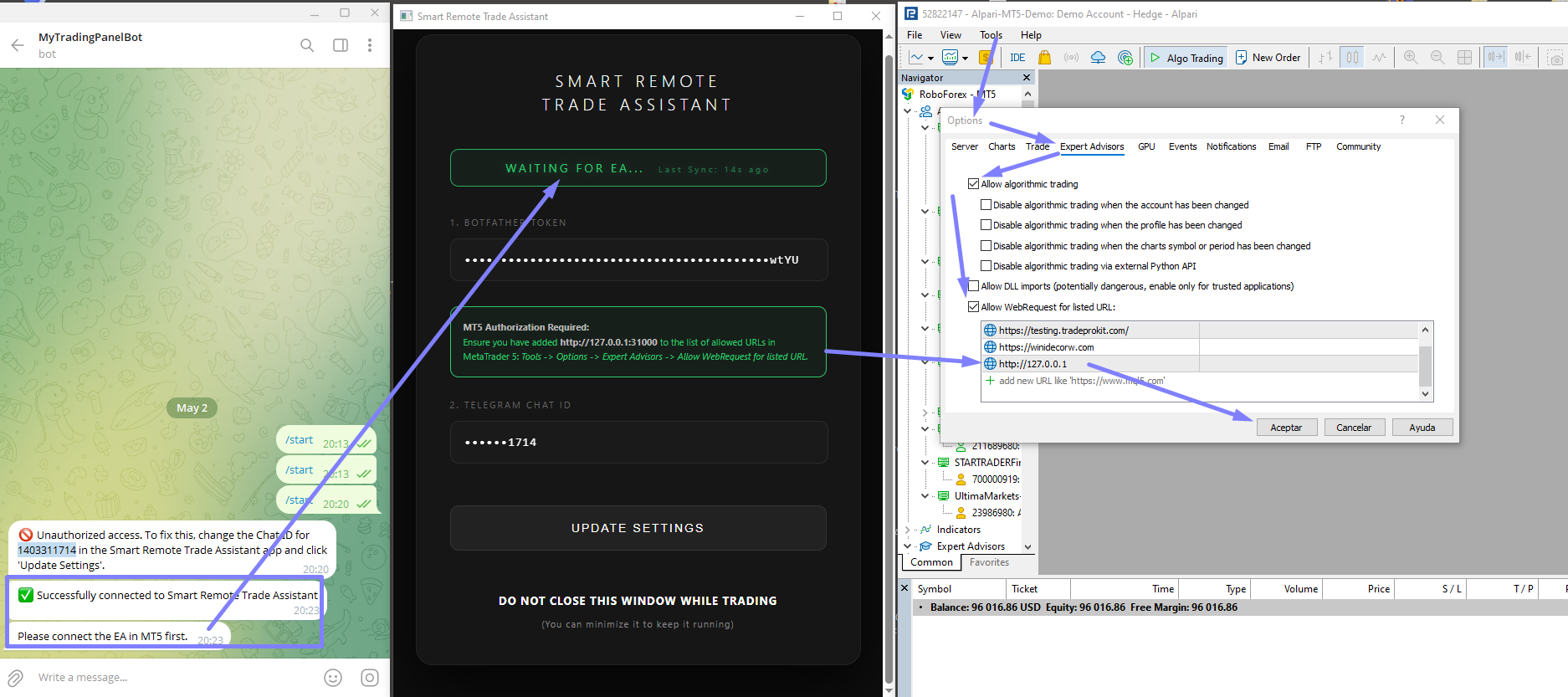
Open the Smart Remote Trade Assistant 1.12.exe application on your Windows PC or VPS.
-
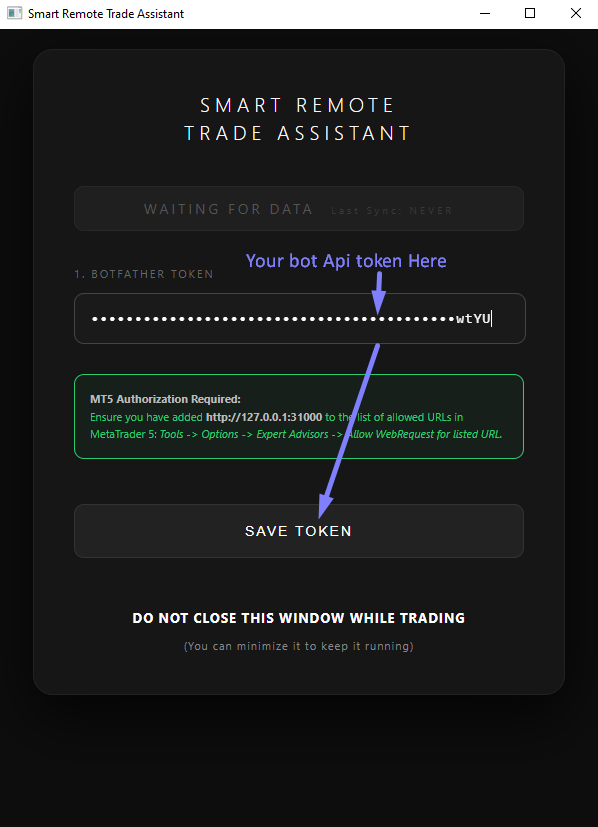
You will see a sleek, dark-themed dashboard.
-
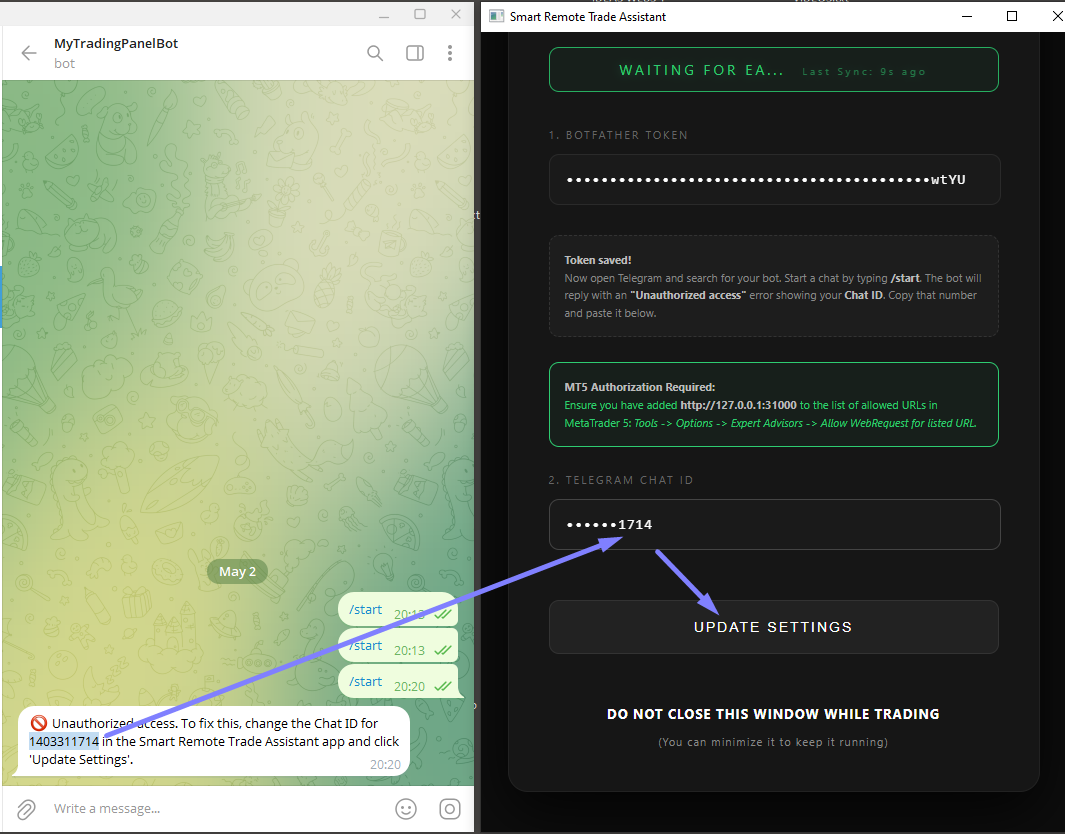
In the 1. BOTFATHER TOKEN field, paste the long API token you copied in Step 2.
-
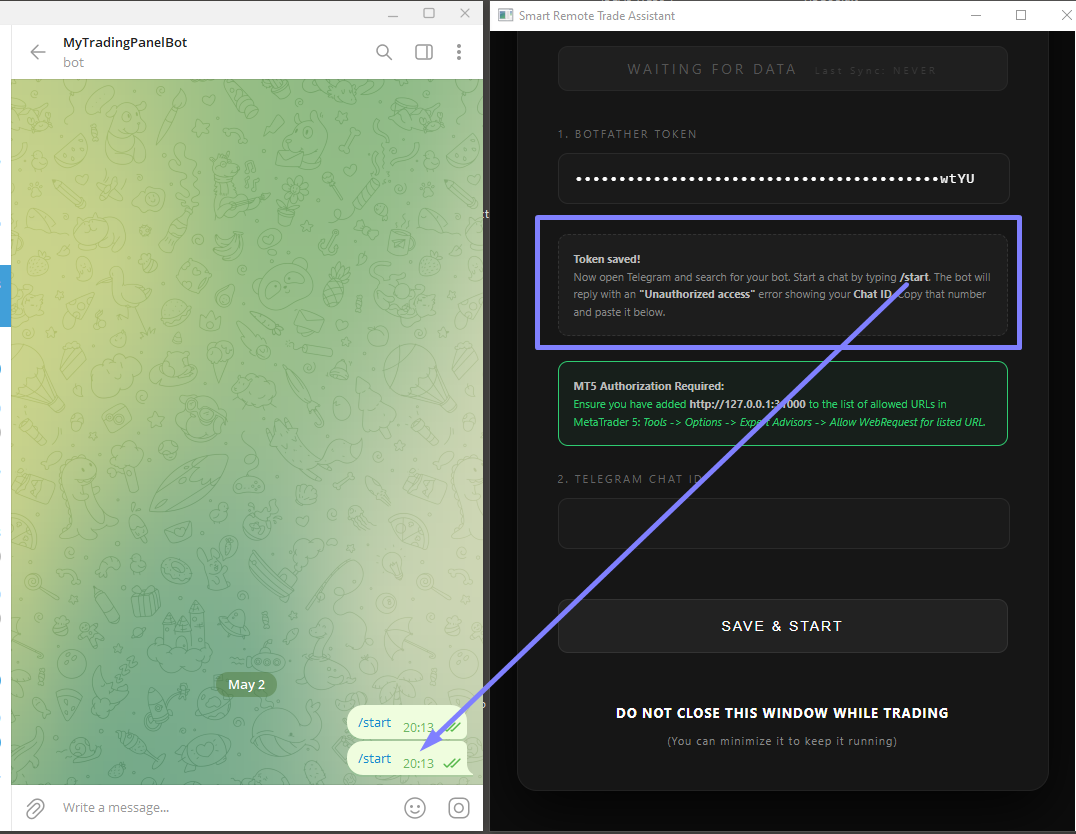
In the 2. TELEGRAM CHAT ID field, paste your personal ID number from Step 3.
-
Click the UPDATE SETTINGS button.
Note: The bridge runs entirely on your local machine. Your token and ID are stored locally in your PC encrypted and never sent to our servers, ensuring absolute privacy.
To paste your bot token and chat id, you can push Ctrl + V keys in your PC keyboard
Step 4: Allowing WebRequests in MetaTrader 5
The final step is to give MetaTrader 5 permission to communicate with your local bridge.
-
Open your MetaTrader 5 terminal.
-
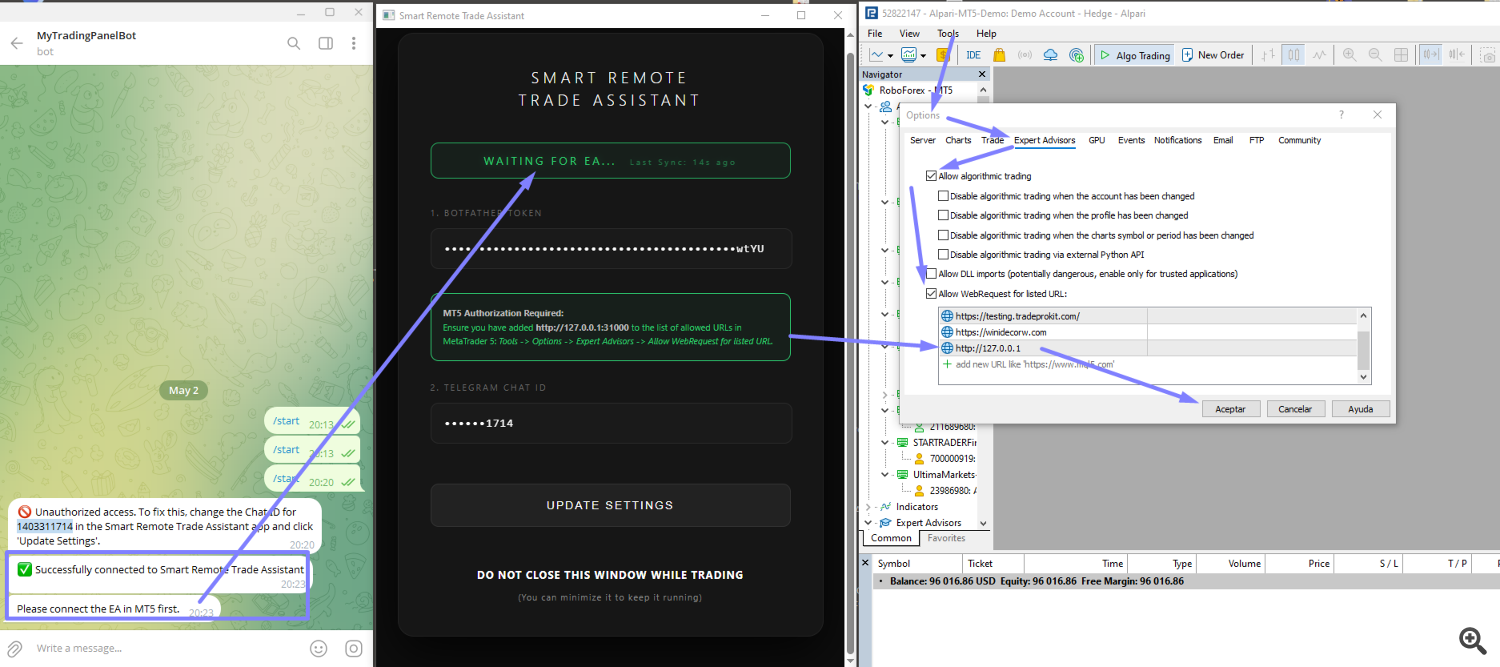
In the top menu menu, navigate to Tools -> Options.
-
Go to the Expert Advisors tab.
-
Check the box that says “Allow WebRequest for listed URL:”.
-
Double-click the plus sign to add a new URL : http://127.0.0.1 (This is your Local Internal IP)
-
Click OK to save your settings.
Step 5 : Load the EA and Start Trading!
-
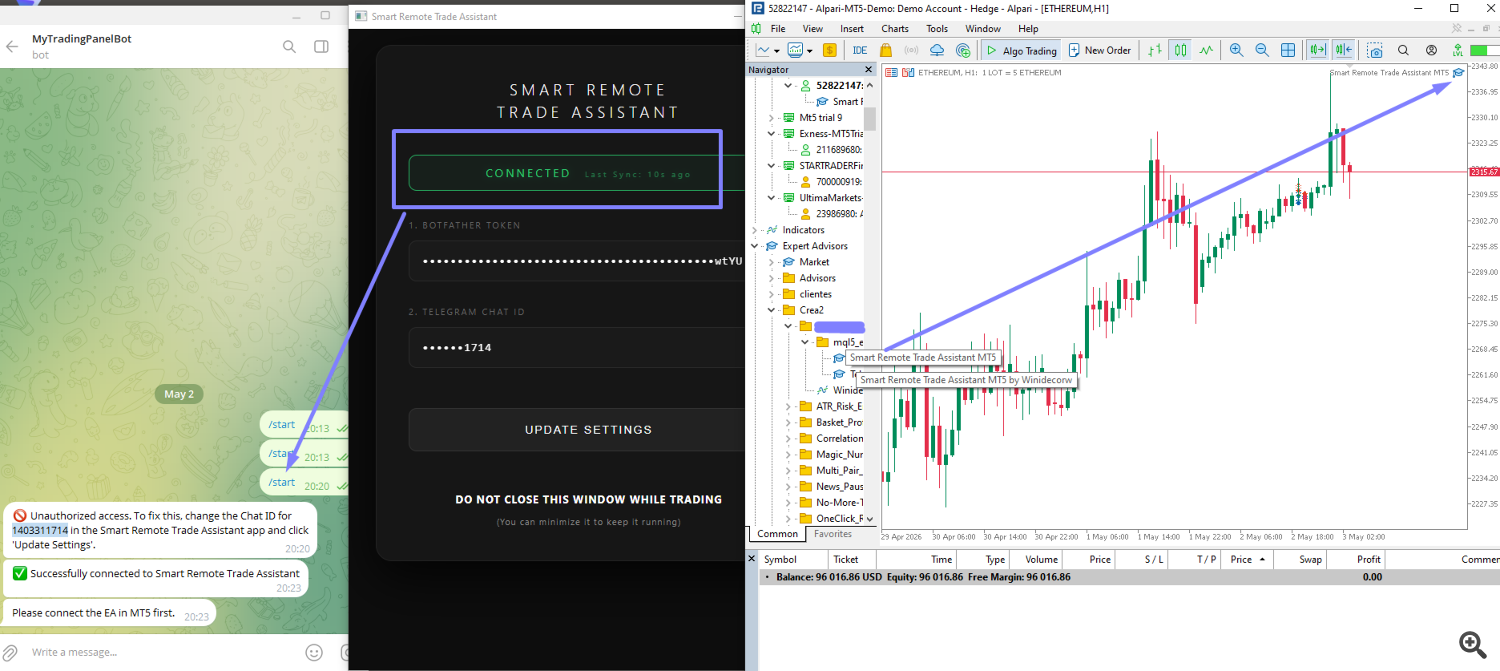
Drag and drop the Smart Remote Trade Assistant MT5 Expert Advisor onto any chart.
-
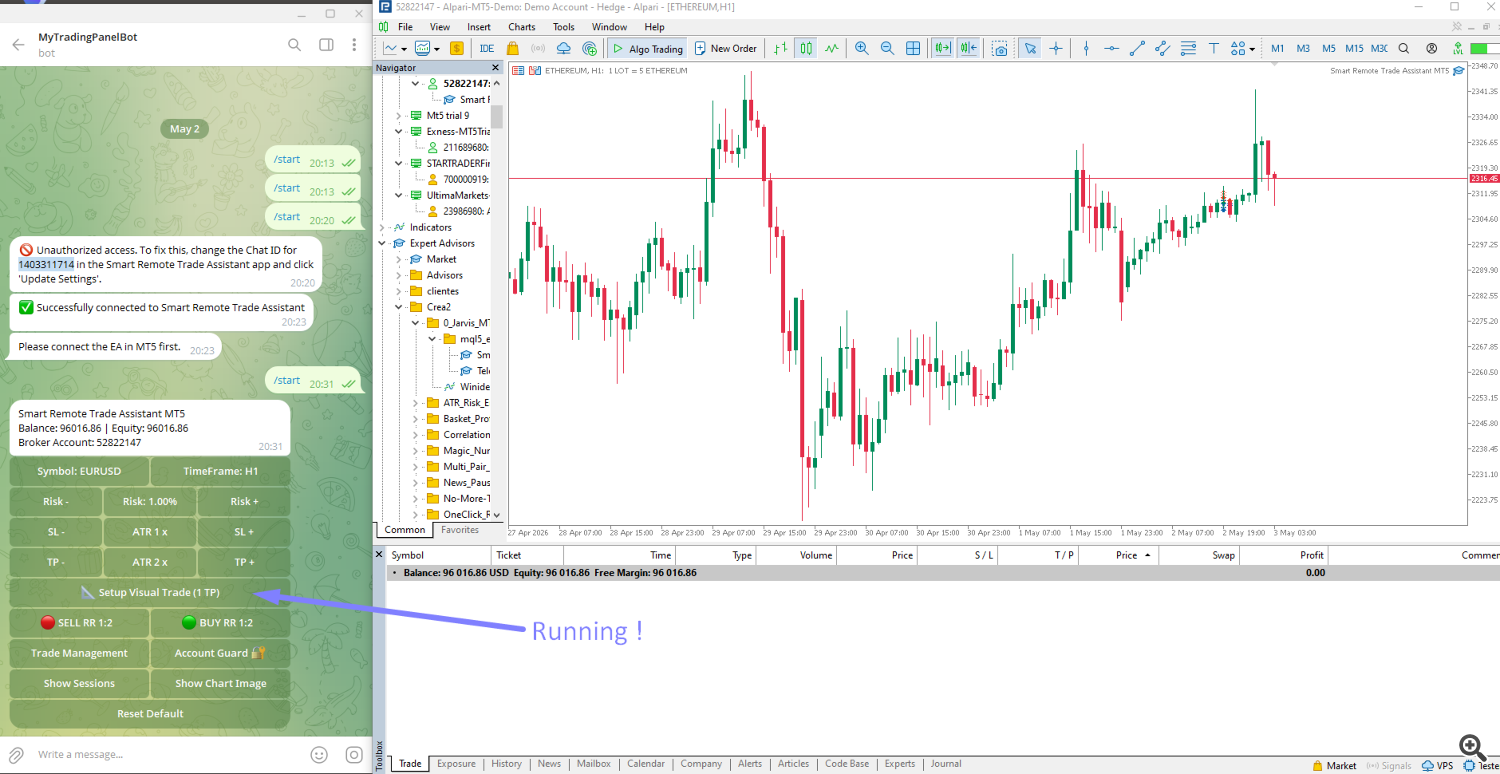
Check your Telegram app. You should receive an instant notification from your bot confirming that the system is [REMOTE_PANEL] System initialized.
-
Crucial Rule: As stated on the Bridge interface, DO NOT CLOSE THE BRIDGE WINDOW WHILE TRADING. You can minimize it to the taskbar to keep it running silently in the background.
-
Everything is connected!
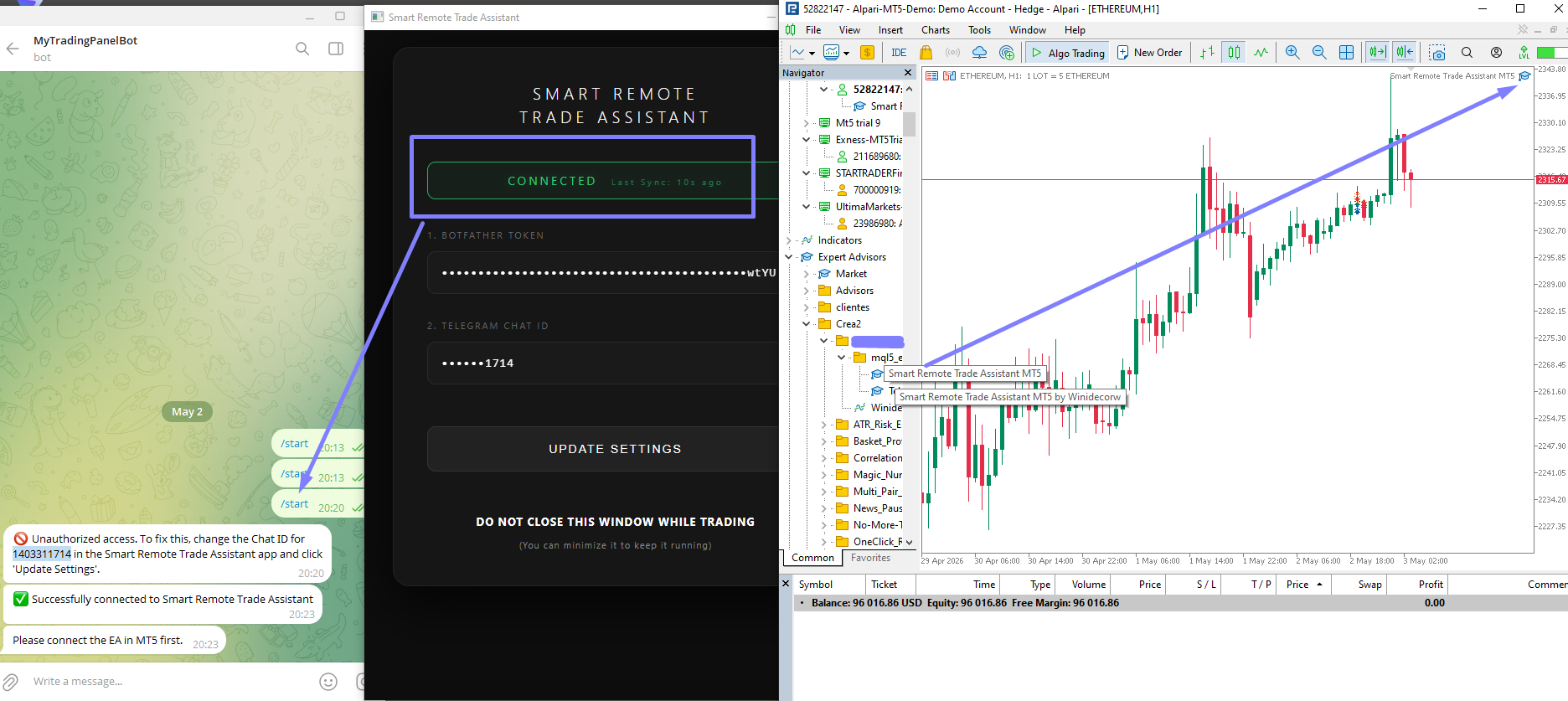
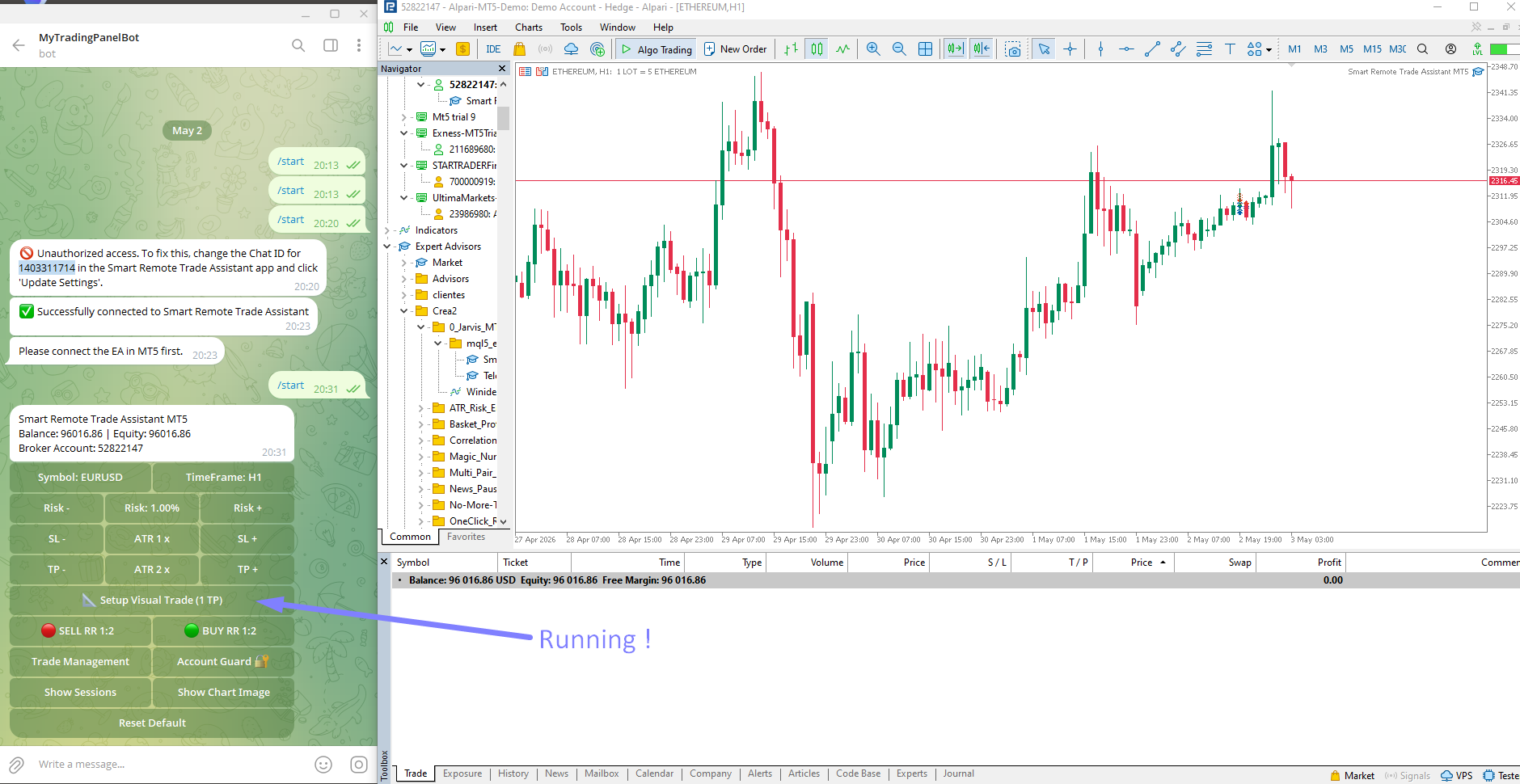
You are now ready to control your trades remotely, securely, and instantly!
I will soon start creating videos covering usage and new features—which I’ll be adding constantly—to make this Remote Trading Panel truly amazing!
If you have any questions or suggestions, don’t hesitate to contact me via the internal chat on mql5.com, or leave your comments right here!
Salvador Martinez Ramos – wini – Trader’s profile – MQL5 Algo Trading community
Seller – Salvador Martinez Ramos – wini – Trader’s profile
Source link