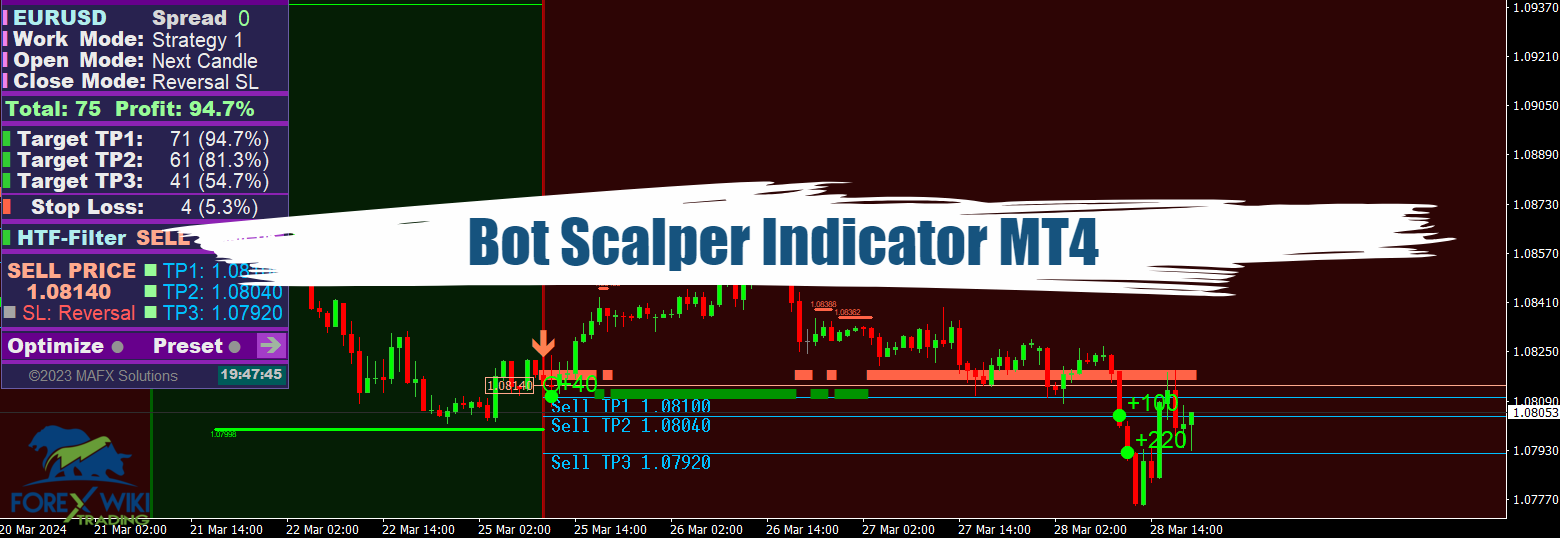
Bot Scalper Indicator MT4 (Update 01/12/2024) – Free Download
Bot Scalper Indicator works with any broker and any type of account, but we recommend our clients use one of the top forex brokers listed below:
Bot Scalper Indicator Settings
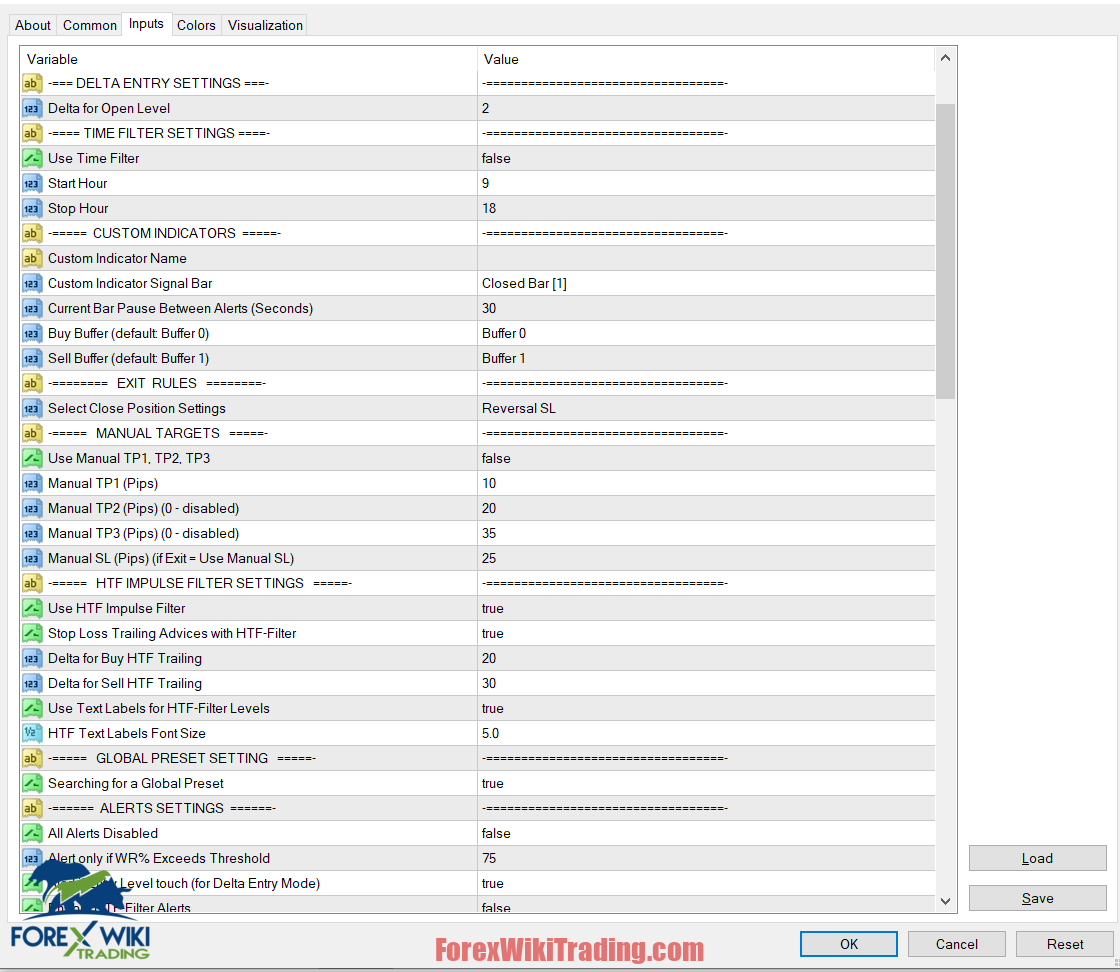
Settings Description:
[Select Strategy – strategy choice for trading]: Strategy-1 / Strategy-2 / Strategy-3 / Custom Indicator – connecting a Custom Indicator
[Strategy 1-3 Sensitivity]: adjusting the Sensitivity for Strategy 1-2 (values from -5 to +18)
[Open Position Mode]: Next Candle Entry / Delta Entry
[Select Close Position Settings]: Auto Calculate SL / Reversal SL / Use Manual SL
[Use Manual TP1, TP2, TP3]: use Manual TP1, TP2, TP3 (true/false)
Alerts Settings:
[All Alerts Disabled]: all alerts quickly disabled, if = true
[Arrows Email Alert] / [Arrows Sound Alert] / [Arrows Pop-up Alert] / [Arrows Send Notifications] – activate/deactivate different types of signals, when the Arrow Signal appears
Visual Settings:
[Use Auto Color Theme]: use a preset Color Scheme
[Select Color Theme]: Dark/Light theme selection, if [Auto Color Theme] = true
[Panel Size Scale (0.5 – 2.0)]: changes the scale of the indicator control panel
All of the following graphical settings will allow you to turn signals On/Off and completely change the color scheme. To use custom color settings, please do not forget to disable automatic theme selection: [Use Auto Color Theme] = false

Connecting and Testing Custom Indicators:
The Custom Indicator Testing Module is used to connect and test your own indicators instead of built-in Strategies. This module works with most of the Arrow Indicators, automatically detecting their working principle. You only need to specify the ‘Indicator Name’ and ‘Graphical Buffers’, in which the indicator draws arrows. Scalper will do the next steps automatically.
1) Run Scalper and set [Select Strategy] = Custom Indicator
2) Enter the name of the Custom Indicator manually from the keyboard [Custom Indicator Name]
3) Select the graphic buffers of the Custom Indicator that displays arrows: Usually for ‘Buy used Buffer-0’, and for ‘Sell used Buffer-1’
4) Make sure that the Signal Arrows of the Custom Indicator match the Signal Arrows that Scalper has built
5) After that, we can use the Scalper indicator in the normal mode but receiving signals from the Custom Indicator