Dynamic Pro Scalper
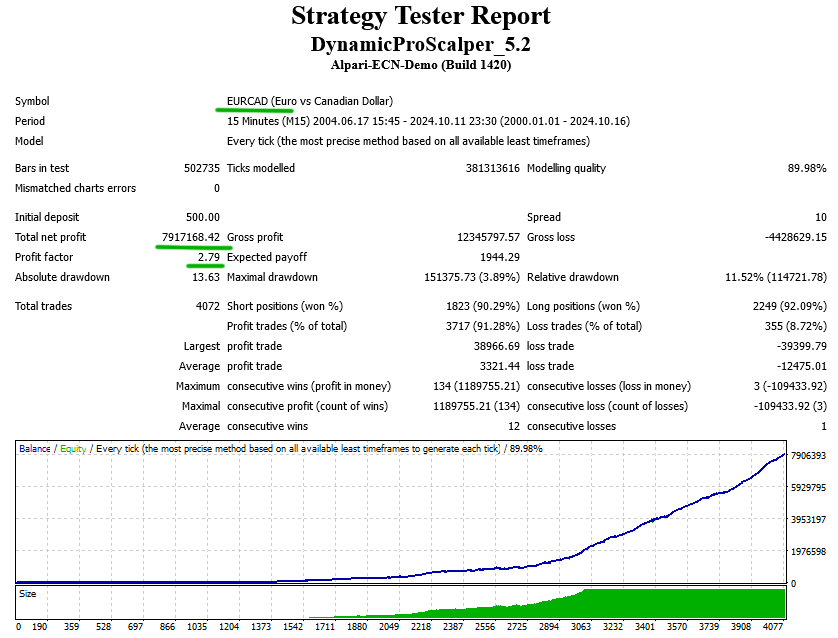
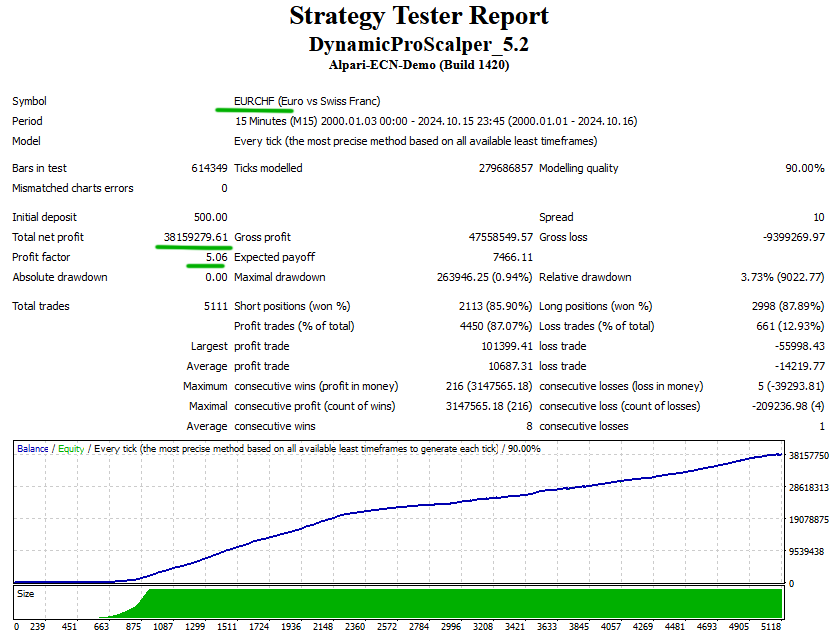
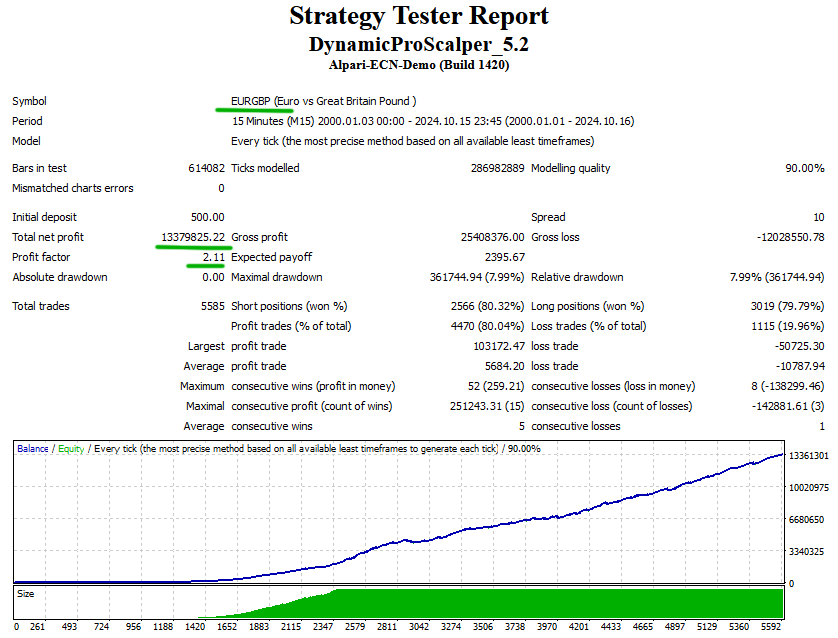
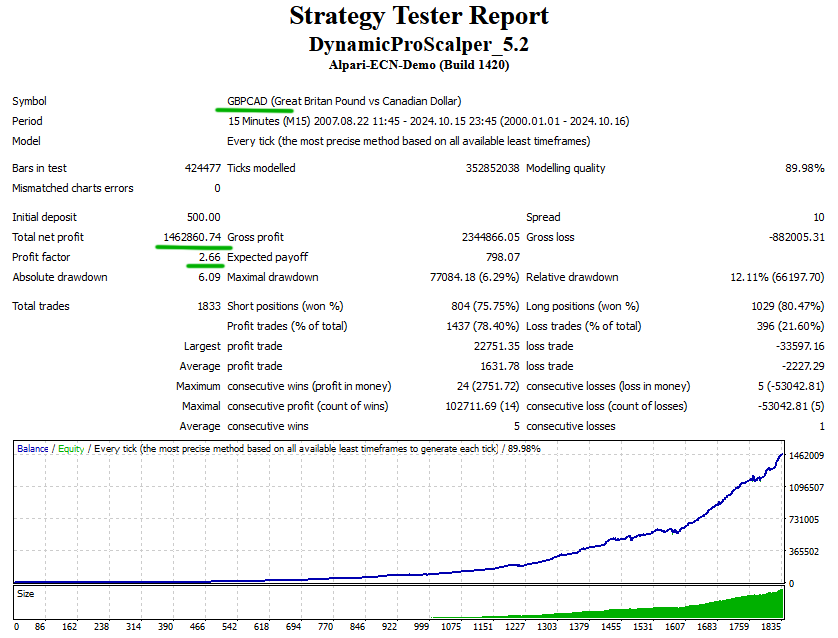
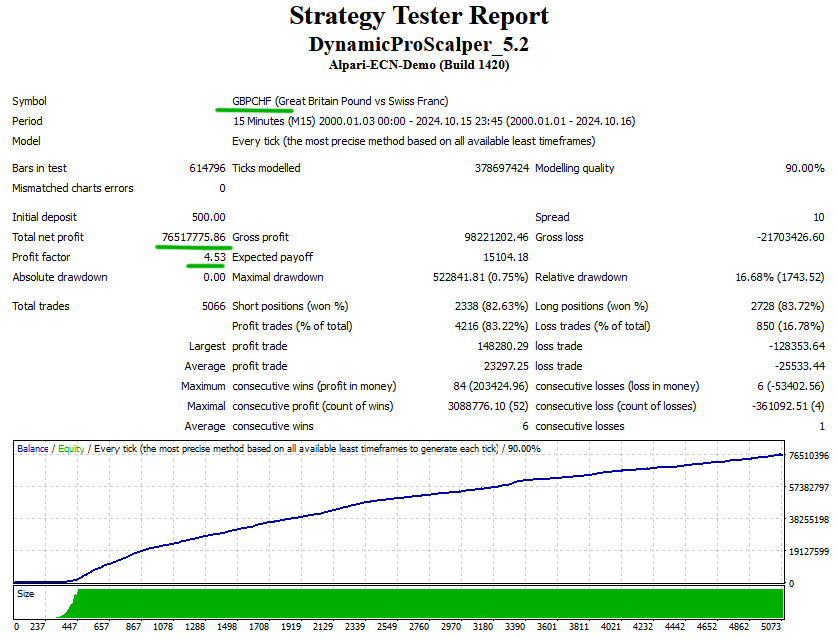
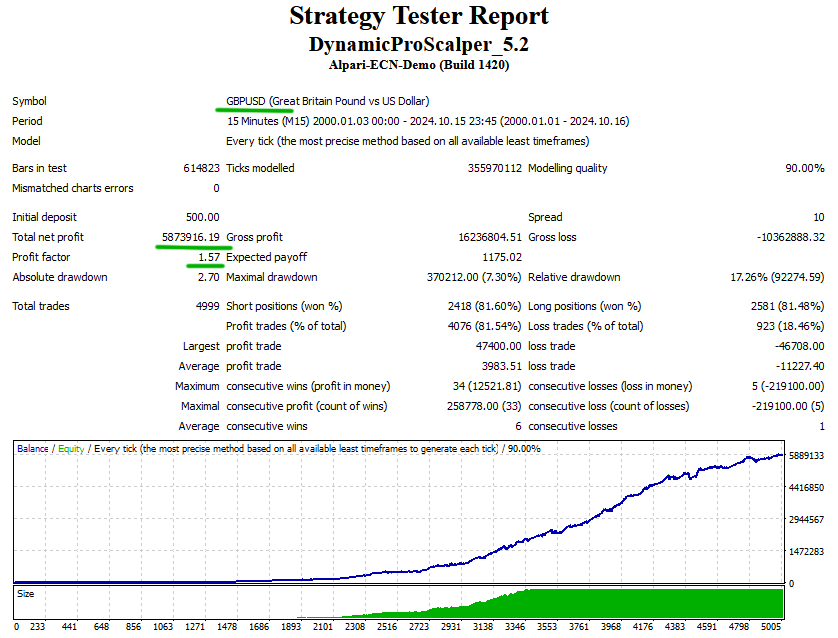
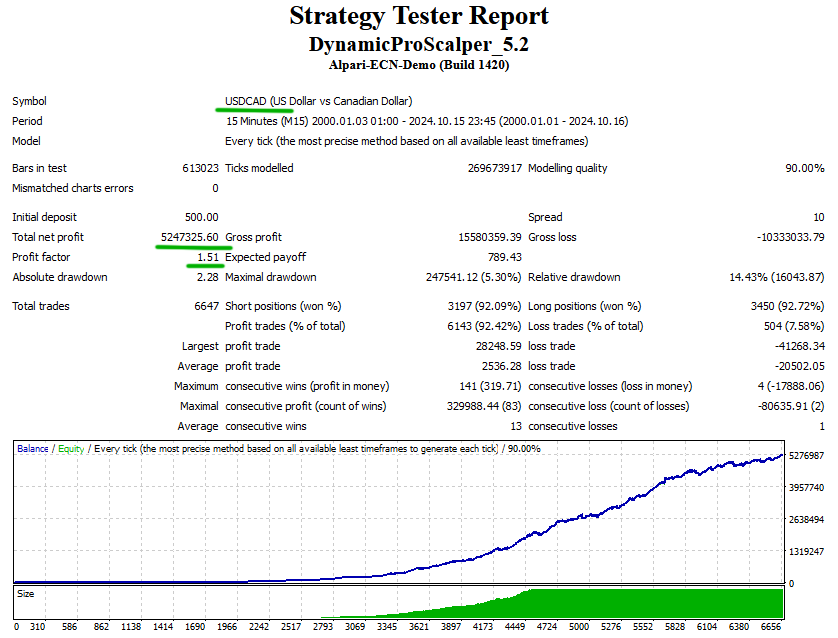
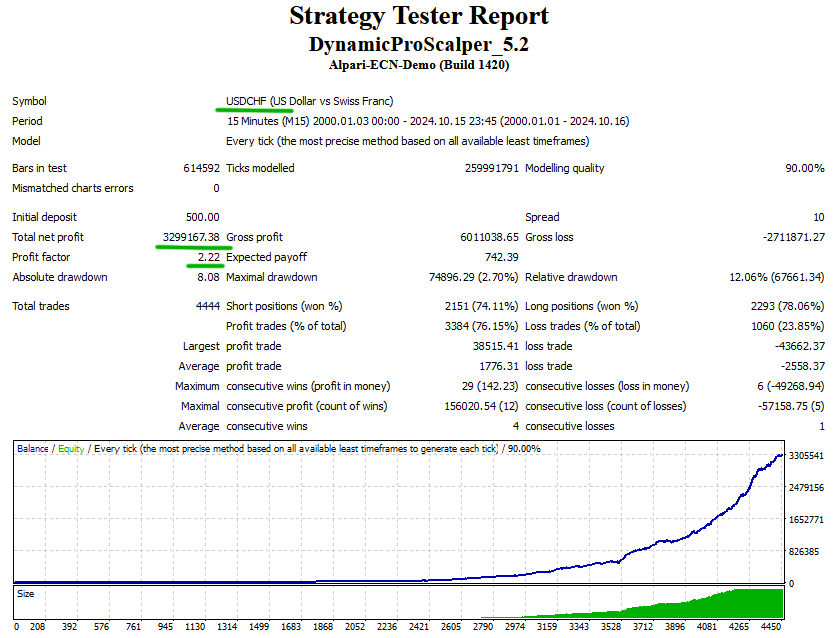
Dynamic Pro Scalper is one of the best Asian scalper on the market. It is completely automated trading system. The main idea behind the Dynamic Pro Scalper is to trade during the Asian session. The EA carefully watches the price of the currency pairs and the volatility of the market. It can trade only during some specific time range which is different for each supported pair. This information is visible in the information box of the EA. Dynamic Pro Scalper uses some standard indicators and make some complex mathematical calculations to determine whether to trade or to close current opened trades.
With Dynamic Pro Scalper you can increase your trading income. The EA has a unique and high-efficient trading strategy. Dynamic Pro Scalper is compatible with all brokers. Dynamic Pro Scalper has dynamic volatility entry and exit levels.
Dynamic Pro Scalper support 9 (nine) currency pairs. They are: GBPUSD, USDJPY, GBPCHF, GBPCAD, EURGBP, EURCAD, EURCHF, USDCAD and USDCHF.
The default settings of Dynamic Pro Scalper are for GBPUSD currency pair only. There are .set files for the rest of the supported pairs. In order to get the expected results users must load correctly the .set files. Scroll to the bottom of this post to download the .set files.
Dynamic Pro Scalper Top Features
- Fully Automated: 100% Hands Free! No manual interventions required!
- Money Management: Integrated advanced account and money management system.
- Easy to use: Extremely easy to use, understand and setup.
- Work With All Brokers: Work with all brokers and accounts (including US based brokers).
- Broker Protection: Protects you against unfair brokers and their techniques of deception.
- Fully Customizable: Can be customized and adapted to individual needs.
- High Spread Protection: It keeps you away from unsuitable market conditions (High Spread).
- High Slippage Protection: It keeps you away from unsuitable market conditions (High Slippage).
- Very Low Drawdown: With its unique and high-efficient trading strategy the robot has very low drawdown.
Recommendations:
Recommended Time Frame: M15
Recommended backtest method: Every tick + M15 time frame
Supported pairs: GBPUSD, USDJPY, GBPCHF, GBPCAD, EURGBP, EURCAD, EURCHF, USDCAD and USDCHF.
Dynamic Pro Scalper Settings
*** General settings ***
- Allow_BUY – When this parameter is TRUE the robot will open BUY trades. When this parameter is FALSE the robot will not open any BUY trades.
- Allow_SELL – When this parameter is TRUE the robot will open SELL trades. When this parameter is FALSE the robot will not open any SELL trades.
- GMT_Offset – The GMT Offset of your broker. You must always write here the winter GMT Offset of your broker!
- Calculate_DST – Set this parameter TRUE if your broker switches to summer time at the end of the winter. If your broker always has one GMT Offset whole year then set this parameter FALSE!
- MagicNumber – make certain that all magic numbers of all your EA are different. This is extremely important for the correct and safe functioning of the expert advisors in the MT4 terminal.
- Recovery – When the Recovery option is activated the robot will start to compensate all previous losses with very smart algorithm. This option works in combination with Auto_Risk – it must be activated also.
- Auto_Risk – automatic risk management activates at values greater than zero. Example: At Auto_Risk = 10, the EA opens positions equal to 0.1 lots for $1000 account free margin.
- Auto_Risk_Max – The maximum risk permitted in the account during trading. This option limits the risk when the Recovery is activated.
- Lots – fixed trading volume. If Auto_Risk>0, the Lots parameter will be deactivated.
- Slipage – maximum allowed slippage in standard pips.
- Max_Spread – maximum allowed spread in standard pips.
- Max_Spread_Exit – this parameter is especially useful when closing trades. By setting a value for this parameter (often equal to or greater than the Max_Spread value), the EA will check the spread before exiting trades, potentially enhancing trade performance and profitability.
- Stop_Loss – stop loss value in standard pips.
- Take_Profit – take profit value in standard pips.
- TradesComment – The value of this option will be used as a comment during opening of trades.
- HiddenMode – When this parameter is TRUE the robot will not set any Stop Loss and Take Profit to open trades. The SL and TP will be hidden for the broker. This parameter can be used only if you are sure that your broker is not fair with you.
- Close_On_Profit – When this parameter is TRUE the robot will close open trades only on profit or when the price hits the stop loss value.
*** Strategy settings ***
- Trading_Hours – best hours when Dynamic Pro Scalper shows best results. Dynamic Pro Scalper is an Asian session scalper and therefore the trading hours are limited. The default trading hours in our .set files are in GMT +0 time. The default GMT Offset in Dynamic Pro Scalper is +2 (for brokers with winter GMT Offset +2 and summer GMT Offset +3). If your broker GMT Offset is different then you have to set correctly both parameters GMT_Offset and Calculate_DST. After that Dynamic Pro Scalper will convert the trading hours automatically to your broker time. The converted (corrected) value/s of this parameter is visible on the information box. In case you wish to change the trading hours or to make your own optimization bare in mind that you have to work with hours based on GMT +0 not your broker time! The robot will do the conversion for you automatically based on your GMT Offset settings!
- Trading_Hour_Backtest – This parameter is designed to help users to find best trading ours during backtests optimization. In order to use this parameter, you must enable the parameter for optimization and set Start=0, Step=1 and Stop=23. This way the robot will test the trading logic individually for all the hours from 0 till 23. Have in mind that these hours are in GMT +0 time. So, you can use the result (the best trading hours) directly in the Trading_Hours parameter separated by comma.
- Channel_Period – the period of the main indicator.
- Exit_Distance – a break in pips that triggers a positions closing.
- Entry_Break – a break in pips that triggers a positions opening.
- Min_Volatility – minimum market volatility.
- Exit_Profit_Pips – a minimum profit (loss for a negative value) on which the position will be closed from the main exit logic.
- Reverse_Profit – a minimum profit on which the position will be closed, if a market reverse is detected.
- Exit_Minutes – when this amount of minutes exceeds the position will be close, if the current profit is greater or equal to the Time_Profit_Pips parameter.
- Time_Profit_Pips – a profit in pips (loss for a negative value) on which the position will be closed when the position live in minutes is greater than the Exit_Minutes parameter.
*** Monday – Friday settings ***
- Monday_Start_Hour – with this parameter you can control when the robot to start trading on Monday morning. By default, it will start at 00:00 am. If you want to stop trading on Monday morning, then you have to set a valid hour for example Monday_Start_Hour=5 – the robot will not trade before 05:00 am on Monday morning.
- Friday_Stop_Hour – with this parameter you can control when the robot to stop trading on Friday. By default, this parameter has 24 as a value. This means that the robot will trade to the end of Friday. For example, if you set Friday_Stop_Hour=20 – this means that the robot will stop trading at 20:00 pm on Friday and will not open any new trades until the end of the day.
- Friday_Close_Trades_Hour – with this parameter you can set the robot to close all open trades at a specific time on Friday. For example, if you set Friday_Close_trades_Hour=22 – this means that the robot will close all open trades at and after 22:00 pm on Friday. This parameter has 24 as a value by default. This means that it will not close the open trades at all. All open trades will remain over the weekend.
*** Additional trades settings ***
- Additional_Trades – When this parameter is TRUE the robot will open additional trades when the initial trade is negative. The additional trades are in the same direction as the initial one. This let Dynamic Pro Scalper to close the trades quickly and always on profit.
- Max_Add_Trades – Maximum number of additional trades which the robot may open.
- Add_Trades_Distance – Minimum distance between the additional trades in pips.
- Open_Add_By_Signal – This parameter has 2 possible values: YES and NO. When its value is YES, the additional trades will be opened only by signal generated by special indicators, mathematical calculations and the value of the parameter Add_Trades_Distance. If its value is NO, then the robot will check only the parameter Add_Trades_Distance value.
- Add_Trades_Signal_TF – The time frame of the main indicator used in Additional Trades System when taking decision to open an additional trade or not to open. The robot will use this value only when Open_Add_By_Signal is YES.
- Add_Trades_Lots_Multiplier – This parameter controls the lot size of the additional trades. By default, the lot size is equal to the initial trade lot size (Add_Trades_Lots_Multiplier=1). If the value of this parameter is lower than 1 then the additional trades will be opened with lower lot size than the initial trade. If the value is greater than 1 then the additional trades will be opened with greater lot size than the initial trade. Add_Trades_Lots_Multiplier is a multiplier and you can easily calculate the additional trades lot size. For example, if the initial trade lot size is 0.1 lot and you set Add_Trades_Lots_Multiplier=1.5 then additional trades lot size will be: 0.1 x 1.5 = 0.15 lots
- Add_Trades_Martingale – Set TRUE in order to make Dynamic Pro Scalper Martingale strategy. When it is TRUE every additional trade will have bigger and bigger lot size calculated by the multiplier Add_Trades_Lots_Multiplier.
- Take_Profit_With_Adds – Take Profit value in pips when there are opened additional trades. When the total profit of initial trade and the additional trades is greater or equal to Take_Profit_With_Adds value the robot will close all opened trades.
- Take_Profit_Money_With_Adds – Take Profit value in money (usually your account base currency). This parameter is very useful in case that you have set Add_Trades_Lots_Multiplier greater than 1. This means that the additional trades will be with greater lot size than initial trade. In such cases it is better to use take profit in money instead pips. It is easier to recover and the trades will be closed quickly.
- Stop_Loss_With_Adds – Stop Loss value in pips when there are opened additional trades. When the total loss of initial trade and the additional trades is greater or equal to Stop_Loss_With_Adds value the robot will close all opened trades.
- Add_Trades_Signal_Line – The signal line when the Additional Trades System may activate a new additional trade if Open_Add_By_Signal is set to YES.
- Add_Trades_Signal_Period – Period of the main indicator used in the Additional Trades system. The parameter will be used only if Open_Add_By_Signal is set to YES.
NOTE: By default the Additional Trades System is disabled and all its parameters have some default or zero values. If you wish to use the Additional Trades System you have to load the .set files which we have prepared specially for this system. They will activate and configure the system for you. Of course you can also do your own optimization if you wish and find the best values for you.
*** Notification settings ***
- Email_Notification – When its value is TRUE the email notification will be enabled. In order to use properly this type of notification you have to configure your MT4 terminal Email configurations correctly. You can find them in: MT4->Tools->Options->Email
- Mobile_Push_Notification – When its value is TRUE Mobile PUSH notification will be enabled. In order to use properly this type of notification you have to do:
– Set Mobile_Push_Notification=true
– Enable mobile push notifications in MT4->Tools->Options->Notifications
– Enter you Metaquotes ID in MT4->Tools->Options->Notifications
Dynamic Pro Scalper Backtest results
Source link