Installation Guide: FxS Recovery Zone Pro EA

Congrats on getting the FxS Recovery Zone EA from MQL5.com! Now it’s time to get it up and running on your MetaTrader 5 (MT5) platform. Whether you’re a beginner or a seasoned trader, this guide will walk you through every step—from purchase to deployment—so you can start using your new expert advisor with confidence.
✅ Step-by-Step Installation Guide
Step 1: Open MetaTrader 5
First things first:
- Launch the MetaTrader 5 terminal on your computer.
- Make sure you are logged in to the same MQL5 account you used to purchase the EA.
📌 You must be logged into your MQL5 account in the MT5 terminal to access your purchased products.
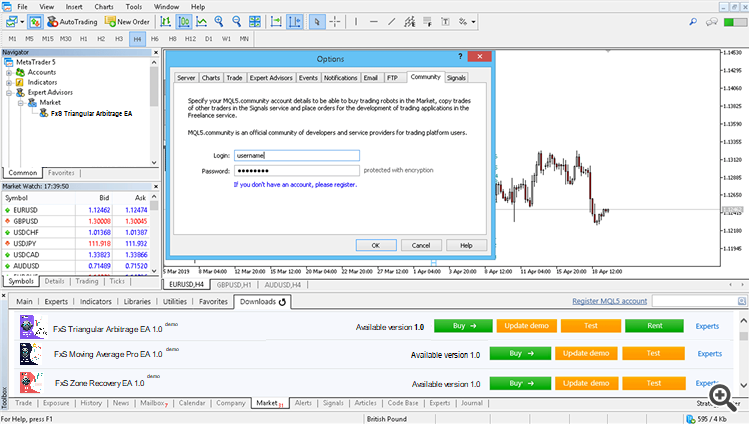
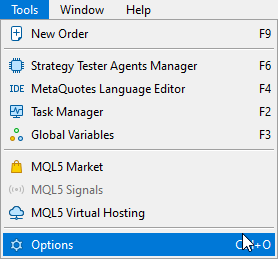
* Click on Tools -> Options -> Community Tab.
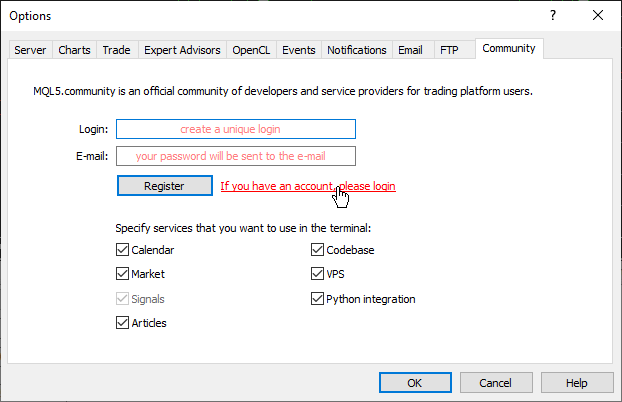
* Click on “If you have an account, please log-in”.
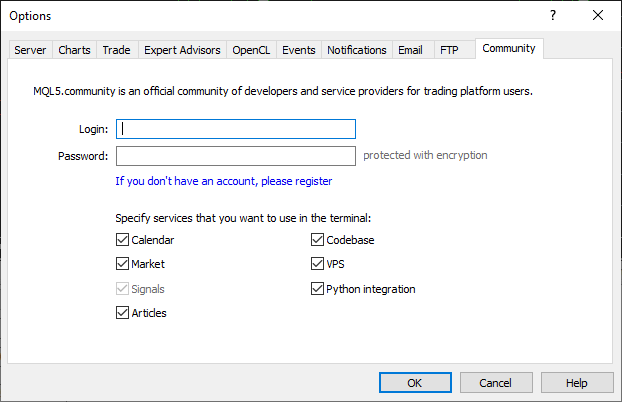
* Enter your mql5.com login and password.
* Then, activate the EA or Indicator in your platform. This will spend an activation.
Step 2: Access the Market Tab
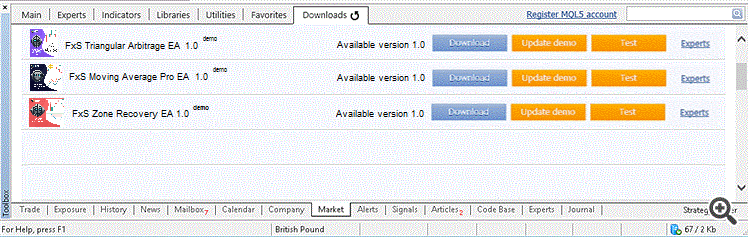
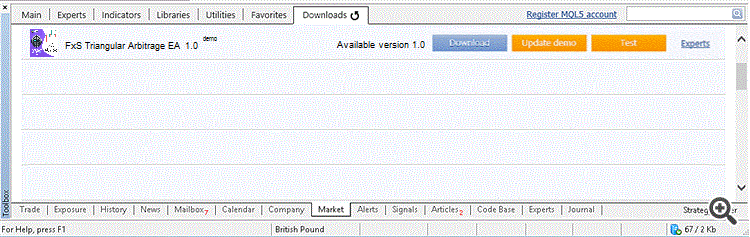
- The purchased EA/Indicator should be listed.
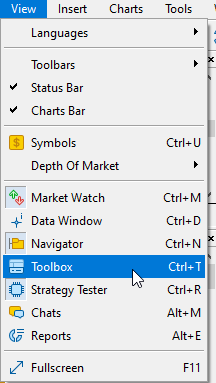
🧭 If you don’t see the Toolbox window, press Ctrl + T or go to View > Toolbox .
Step 3: Install the EA
Step 4: Attach FxS Recovery Zone EA to a Chart
Now that the EA is installed:
-
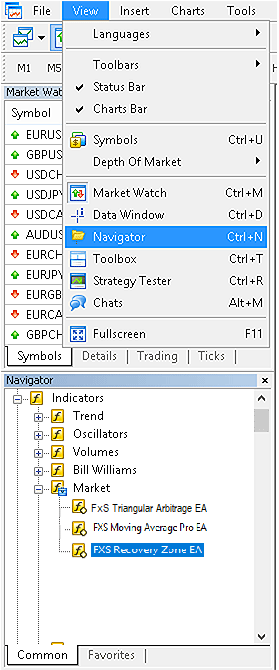
Click View -> Navigator to open the navigator.
-
The recently activated EA will be listed in Navigator -> Expert Advisors -> Market.
-
Drag and drop FxS Recovery Zone EA onto your chart.
Refer to the sections below in MetaTrader for all relevant dialogs: credentials, market, downloads, and navigator.
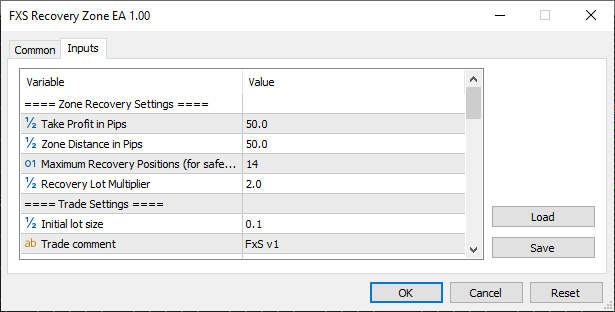
Step 5: Configure the Settings
-
Here you can configure your preferred Zone Recovery settings, Trade settings, Entry Indicator, etc.
-
Click OK when you’re ready.
Step 6: Enable AutoTrading
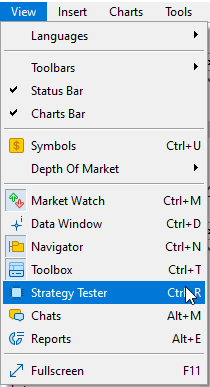
🧪 Optional: Test in Strategy Tester (Recommended Before Going Live)
-
Select FxS Recovery Zone EA from the dropdown.
-
Choose a symbol and timeframe.
-
Run a backtest to see how the EA performs under historical conditions.
💡 Tips & Reminders
-
Always use a demo account to test the EA and your settings before deploying it live.
-
Make sure the required symbols are visible in your Market Watch window.
-
Check that trading is enabled for the account and broker you’re using.
-
If any issues occur, check the Experts and Journal tabs for error messages.
🎉 You’re All Set!
You’ve now successfully installed FxS Recovery Zone EA and are ready to let it analyze the market and make trades based on the zone recovery logic.
Source link